Configure clmBot
Download clmBot and Upload It to the Server
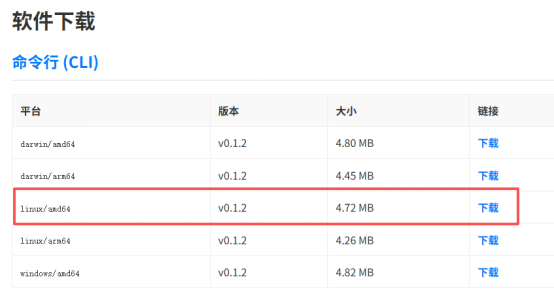
Software download link: Download clmBot

Select the corresponding clmBot version according to your operating system, download it, and then upload it to the server.
clmBot Configuration
- Initialize clmBot. First, modify the clmBot file to make it executable:
#chmod 755 clm-bot-linux-amd64 - Run login initialization:
#./clm-bot-linux-amd64 login. Enteraccess address,AccessKey,AccessSecretin sequence, then press the Enter key.Where to generate AK/SKGo to Backend -> sslTrus CaaS Service -> Product Details -> then click SSL Certificate Details -> Generate AK/SK
:::
After the connection is established, you will see the following prompt

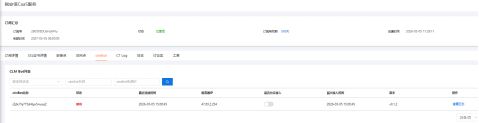
Log in to the backend, go to the clmBot section, and you will see a newly added clmBot node. Click Allow Access to activate clmBot.

- Automatically scan for certificates and their storage paths on the server with the command:
./clm-bot-linux-amd64 discover-certificate
After the command is executed, the found certificate information and paths will be displayed. Enter Y to confirm adding them to the backend management.

You can then view the related configuration in the config.yaml file in the current directory. Please pay attention to the after_script section, which is the script executed after certificate renewal and needs to be modified according to the actual situation.

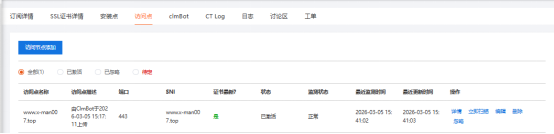
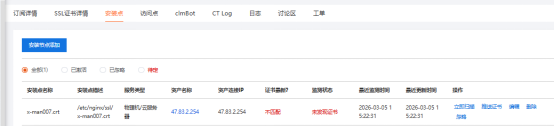
- Activate the node. Log in to the backend, go to installation points and access points, and you will see the newly added node information. Click Activate to start managing the node.


Certificate renewal (physical machine/cloud host)
Method 1: Remote control renewal
- Start clmBot server on the server with the command:
./clm-bot-linux-amd64 server -a="0.0.0.0:8862"
This command requires the
8862/tcpport to be open and starts a server with mutual TLS authentication. If you cannot open the port, please refer to Method 2.

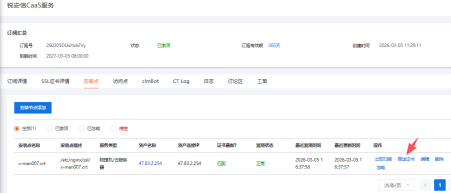
- Log in to the backend, go to the installation point, and click Push Certificate. The system will push the latest certificate to the server.

Method 2: Local controlled update
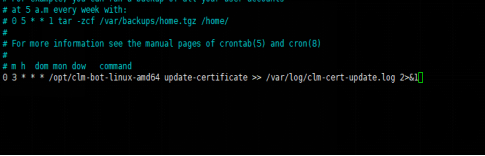
- On the server side, add clmBot to a crontab scheduled task. The clmBot update command is:
cd /opt/clm-bot-demo && ./clm-bot-linux-amd64 update-certificate >> update.log(fill in according to the actual path, ensure you cd to the installation directory)
This configuration is set to check for certificate updates at 3:00 AM every day.
You can also set up a scheduled task in Windows, as shown in the figure below. After the setup is complete, you can right-click the created task to run it, then check the logs in the installation directory to confirm whether the installation is correct:

Certificate reissue
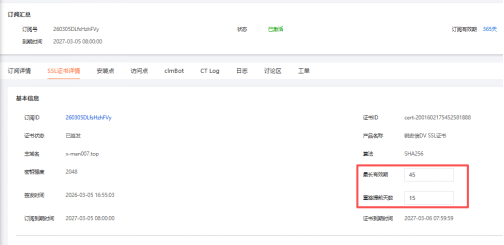
- In the sslTrus CaaS management backend, switch to the SSL certificate details tab and set the automatic certificate reissue cycle.

Effect of the current configuration: The backend will automatically reissue a new certificate 15 days before the certificate expires (in this case, every 30 days). clmbot performs certificate updates at 3:00 AM every day. If a new certificate is found in the backend, it will automatically fetch the new certificate to the server for replacement, and restart the service to make the new certificate take effect.