SSL Certificate Purchase Guide

This article describes how to purchase an SSL certificate.


Log in to Your Account

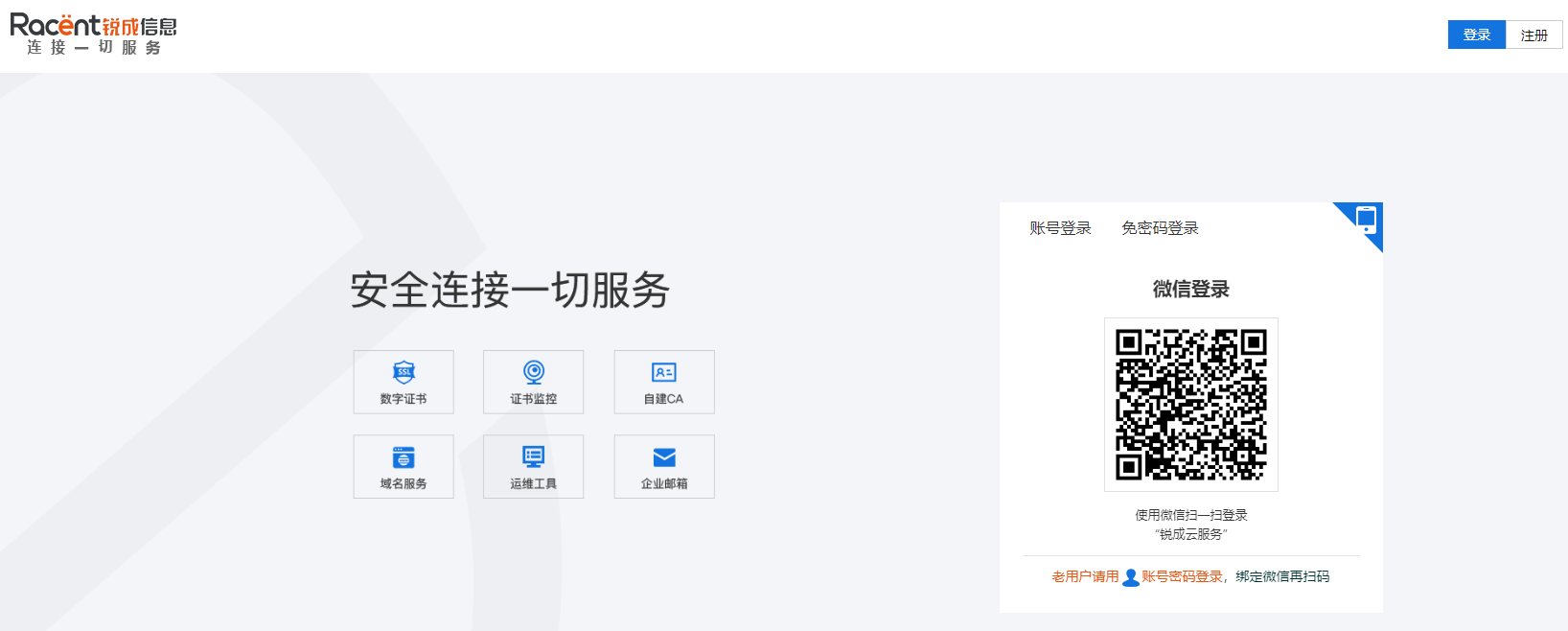
  1. Enter https://www.racent.com/ Racent official website

  2. Click Log In as shown in the figure (if you do not have an account, please register first)

    buysslstepbystep


Select a Certificate

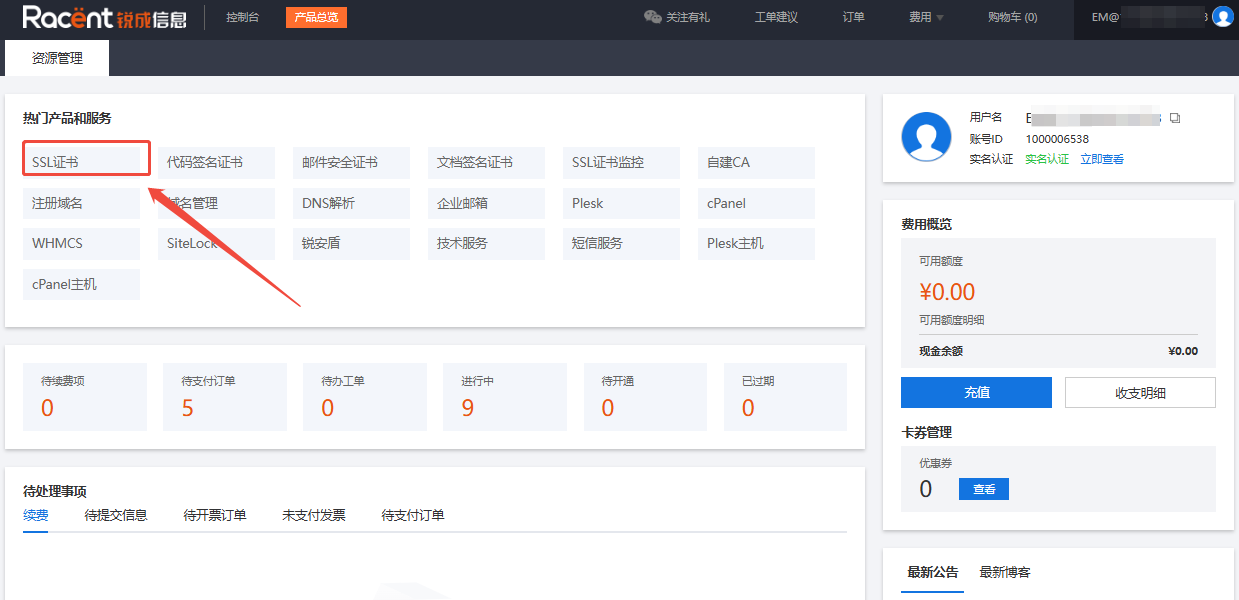
  1. After logging in to your account and entering the Racent console, click the SSL Certificate option in the upper left corner.

    buysslstepbystep

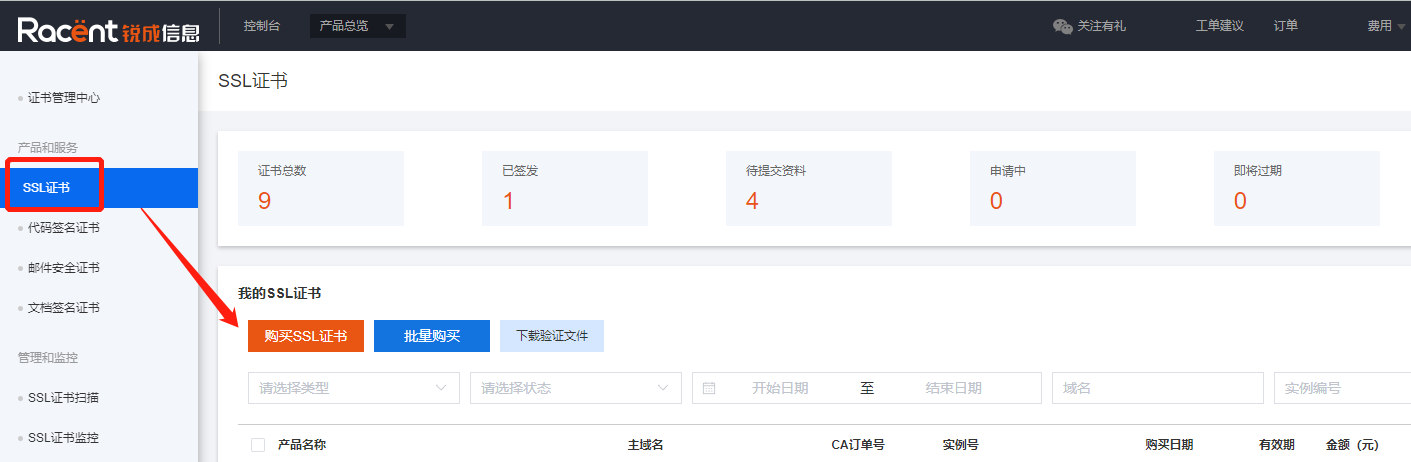
  2. Select SSL Certificates under Products & Services, then click Purchase SSL Certificate to enter the SSL certificate list page.

    buysslstepbystep

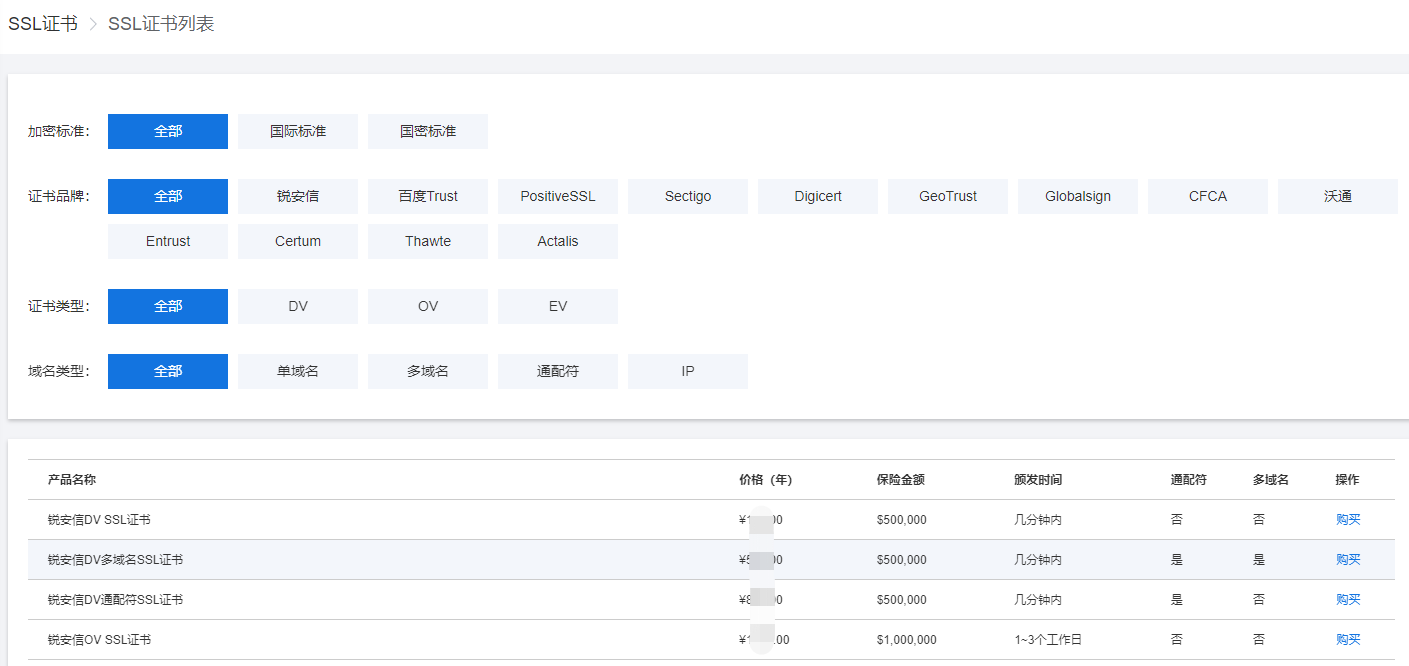
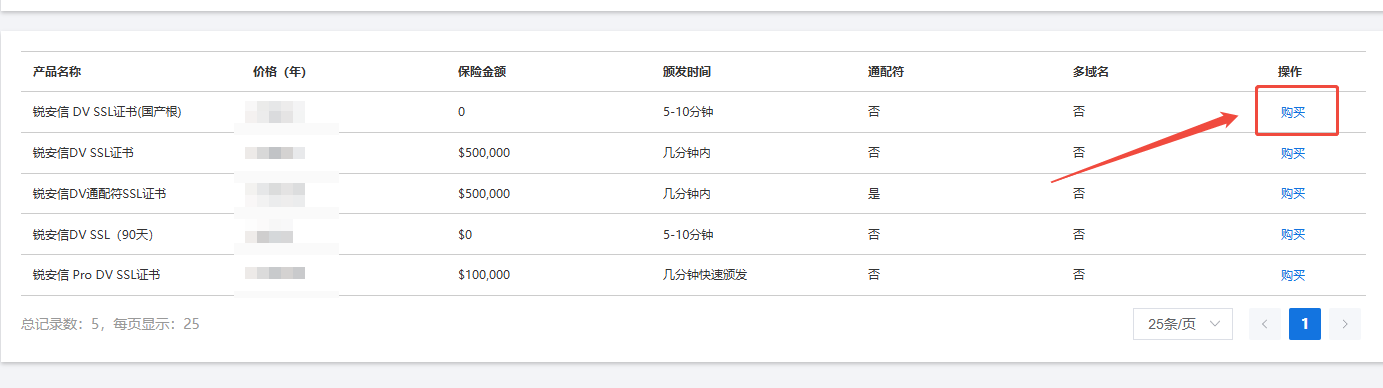
  3. On the SSL certificate list page, you can filter the required SSL certificates by encryption standard, certificate brand, certificate type, and domain name type.

    buysslstepbystep


Select Purchase Quantity

  1. Click the Purchase button to the right of the corresponding certificate to enter the purchase page.

    buysslstepbystep

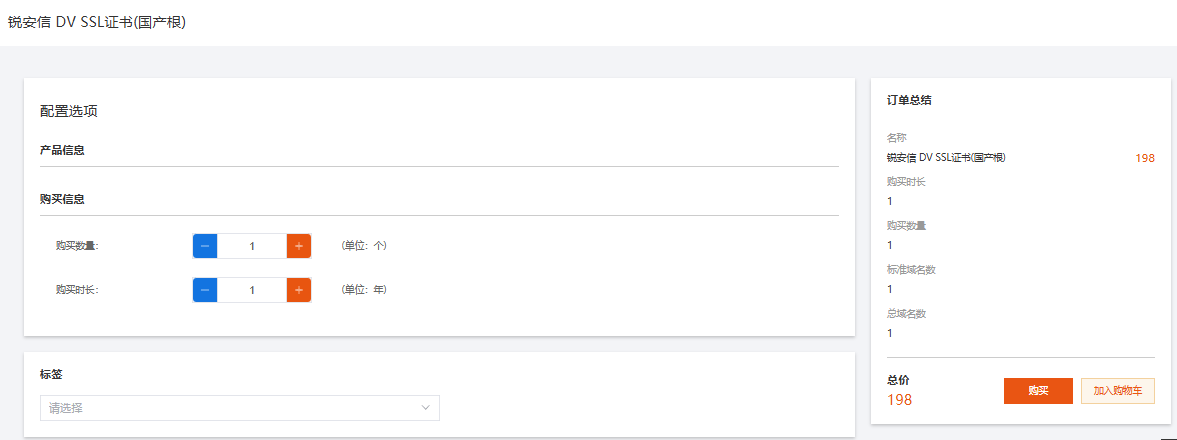
  2. On the purchase page, you can select the Purchase Quantity and Duration.

    Example: Here I purchase 1 one-year sslTrus SSL certificate

    buysslstepbystep

  3. After selection is completed, the quantity on the right will change to 1, and the total price will be displayed below. Then click Purchase to enter the payment page.

    buysslstepbystep

Note

If you need to purchase other products, you can Add to Cart the products you want, and pay for them all together once you have finished selecting all products.


Select a payment method and pay

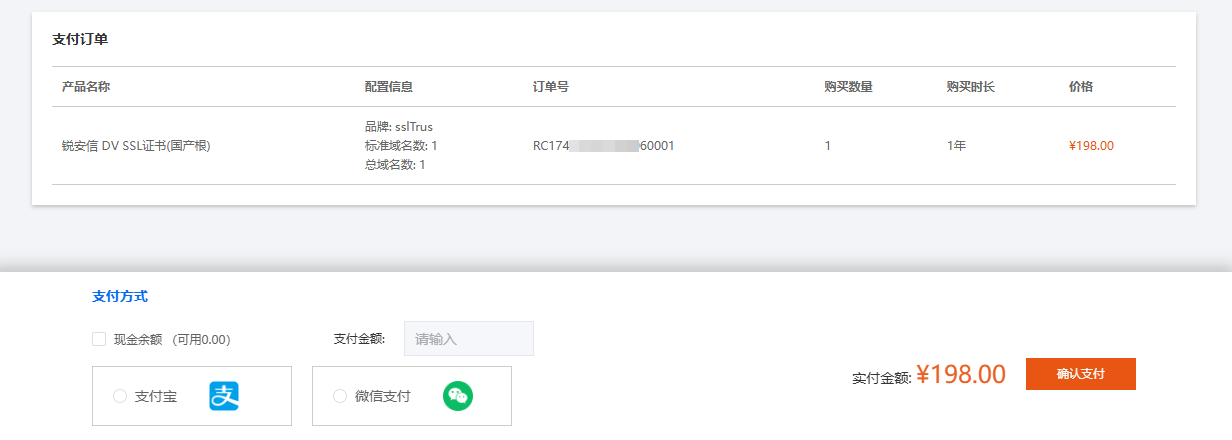
  1. After entering the payment page, check whether the product information of this order is correct.

    buysslstepbystep

  2. Select a payment method below, choose from balance payment/WeChat Pay/Alipay, etc.

    buysslstepbystep

  3. After making your selection, click the Confirm Payment option on the right.

    buysslstepbystep