Insecure Warning in Browser After Installing an SSL Certificate
This guide provides standardized solutions verified by Certificate Authorities (CAs) for the most common types of security alerts that occur after certificate deployment.
The browser shows an insecure warning when accessing the site after SSL certificate installation.
There are three common causes:
Missing intermediate certificate
Cause: The certificate chain was not imported when installing the certificate. Solution:
- For
IIS, entermmcto go to the console and import thepfxcertificate. - For other devices, use the public key and private key in the
nginxfolder (the intermediate certificate has already been merged).
Insecure protocols are configured in the certificate encryption protocol settings
Solution:
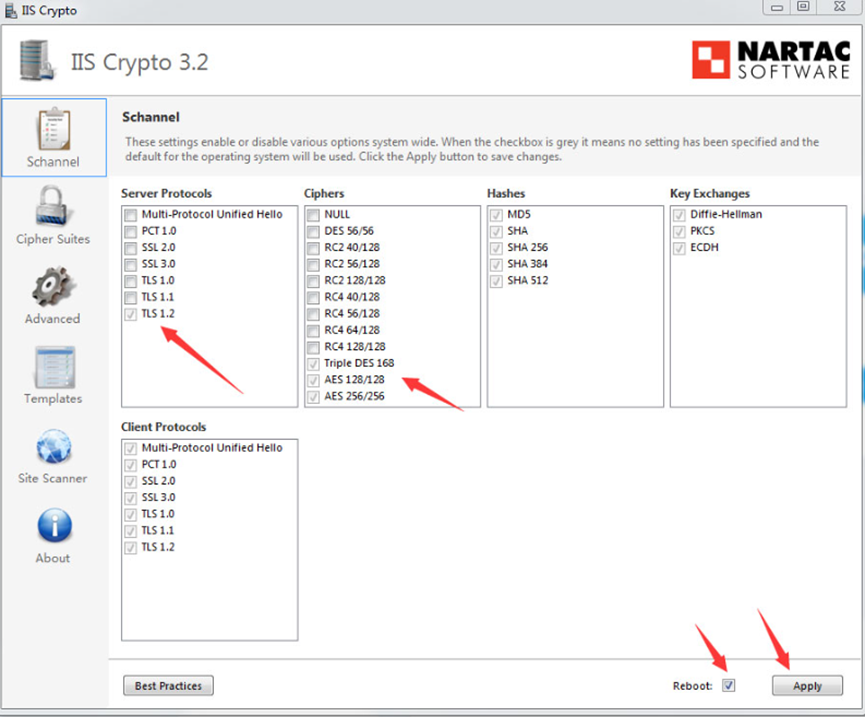
IIS services
- Download the server security management tool
IIS Cryptoto the IIS server using the button below: - After decompression, double-click
IISCrypto.exedirectly to start the installation. Select the options as described below, then clickApplyto save the settings, and then clickRebootto restart the server.

Nginx or Apache
Modify the configuration file and refer to the following parameters:
- You need to configure cipher suites that comply with the PFS specification. Recommended configuration:
ECDHE-RSA-AES128-GCM-SHA256:ECDHE:ECDH:AES:HIGH:!NULL:!
aNULL:!MD5:!ADH:!RC4:!DH:!DHE;
- You need to enable
TLS1.2in theTLSprotocol on the server side. Recommended configuration:TLSv1 TLSv1.1 TLSv1.2;
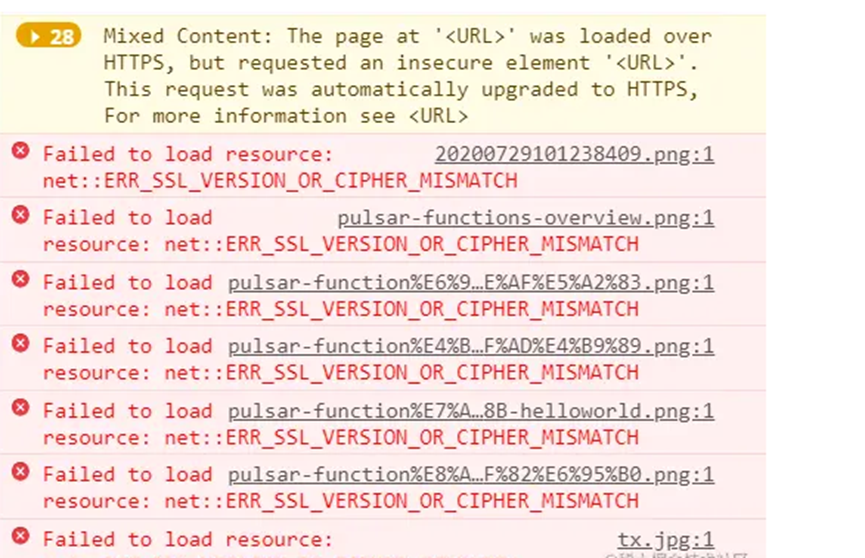
The page references resources under http
Open the website with chrome, and press F12. If you see a similar error prompt, it means http resources are referenced.

Solution: Modify the page to replace all http resources with https resources.
If none of the above solutions resolve the issue, please contact technical support for assistance.