How to Replace a Purchased or Issued Certificate with a Different Type of Certificate
This article helps users understand the rules for replacing a purchased or issued certificate with a different type of certificate, while avoiding the risk of resource waste or service interruption caused by misoperation. If your business needs to adjust the domain coverage scope or certificate type, please refer to the following guidance based on your current order status.
Cancellation Timeframes for Each Brand and Stage
| Brand | Product | Order placed (no materials submitted) | Issuing in progress | How many days after issuance |
|---|---|---|---|---|
| sslTrus | sslTrus Basic | Unlimited time | Unlimited time | 30 days |
| sslTrus Pro | Unlimited time | Unlimited time | 7 days | |
| Sectigo | Sectigo | Unlimited time | Unlimited time | 30 days |
| PositiveSSL | Unlimited time | Unlimited time | 30 days | |
| Digicert | Basic | Unlimited time | Unlimited time | 30 days |
| SecureSite | Unlimited time | Unlimited time | 30 days | |
| GeoTrust | GeoTrust | Unlimited time | Unlimited time | 30 days |
| RapidSSL | Unlimited time | Unlimited time | 30 days | |
| Globalsign | Globalsign | Unlimited time | Unlimited time | 7 days |
| CFCA | China Root | Unlimited time | Unlimited time | 30 days |
| China Root Pro | Unlimited time | Unlimited time | 30 days |
The unconditional refund period starts counting from the official issuance of the certificate. If the certificate has not been issued yet, please refer to steps 2 and 3.
1. Changing the certificate type for an issued certificate
Regardless of whether the original certificate type is single-domain, wildcard, or multi-domain, you may cancel an issued certificate within the eligible cancellation period. For certificates issued within the above cancellation timeframes, you can cancel the order and request a refund following the steps below:
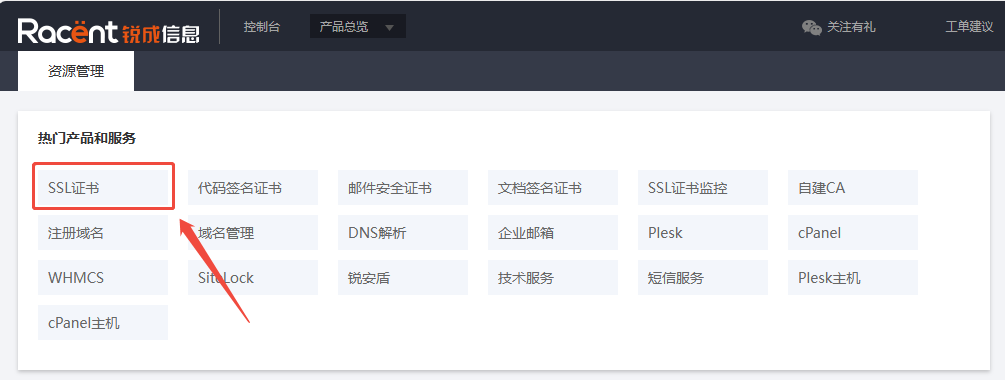
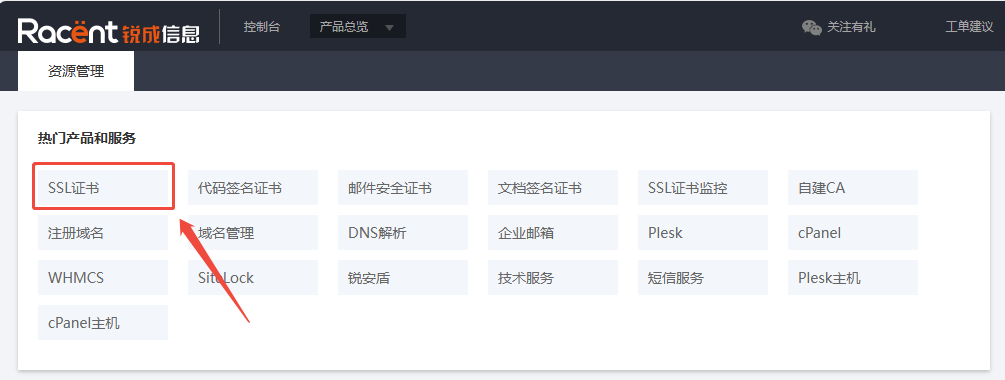
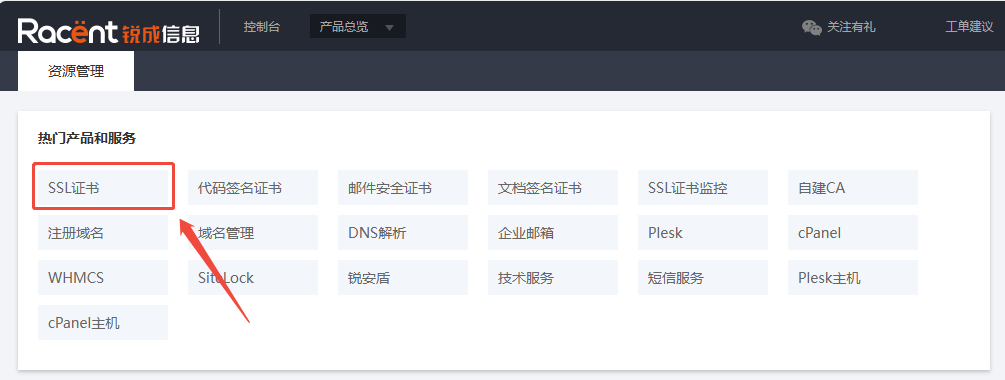
- Log in to the console: Sign in to the Racent console (console.racent.com) and click ‘SSL Certificates’ to enter the SSL certificate page.

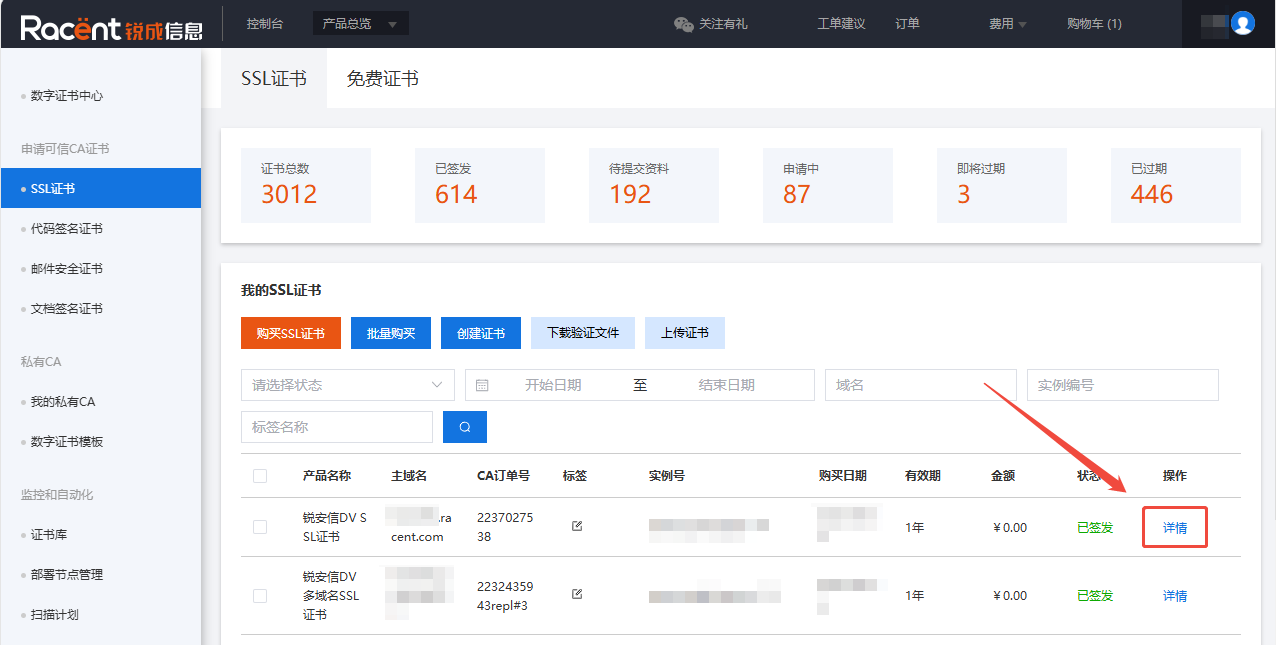
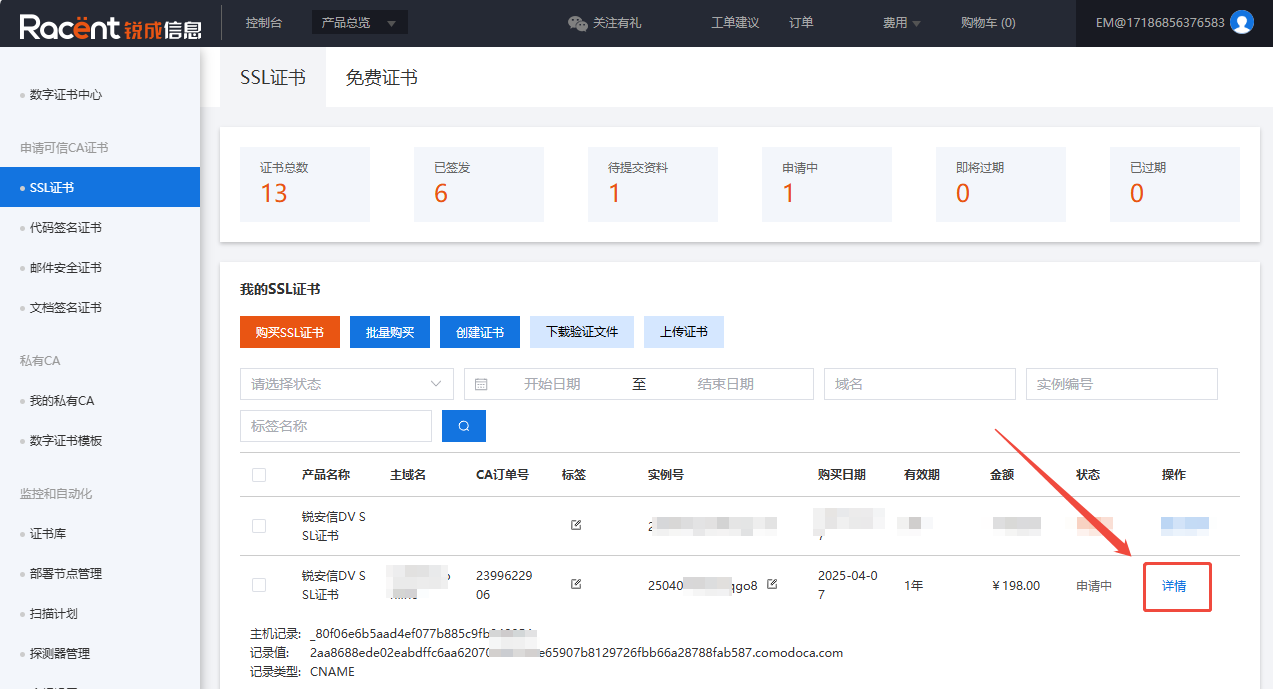
- Locate the order: Find the certificate order you need to cancel > click Details.

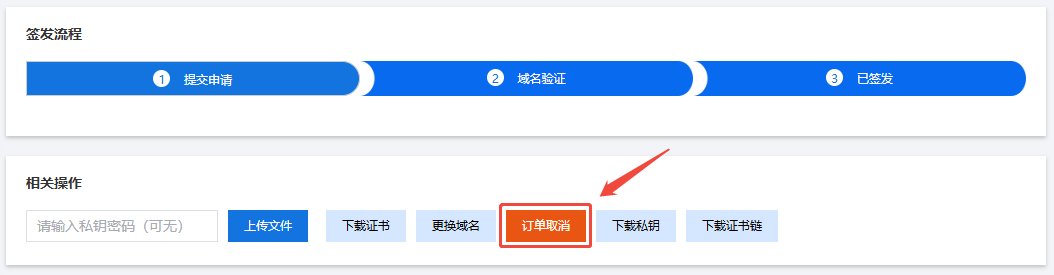
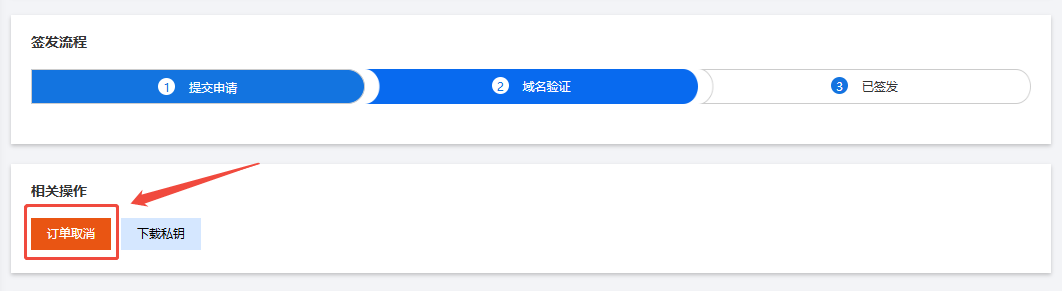
- Cancel the order: After entering the certificate details page, click the orange option "Cancel Order". After confirming the cancellation, the order will be cancelled, and the certificate will be subject to revocation after the order is cancelled.

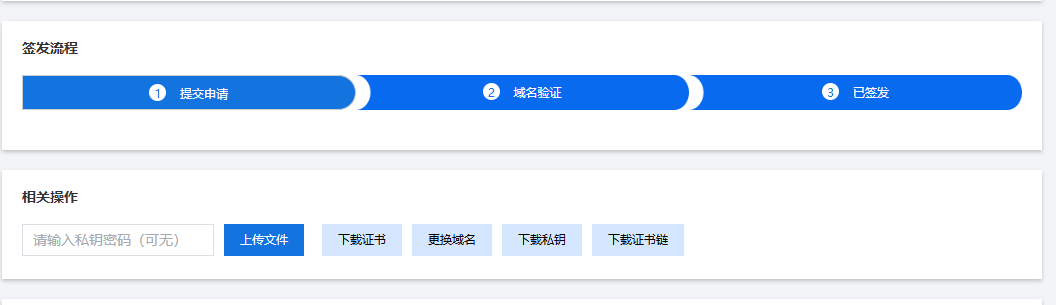
If you cannot find the orange "Cancel Order" option on the order details page, it means the order has exceeded the eligible cancellation period.

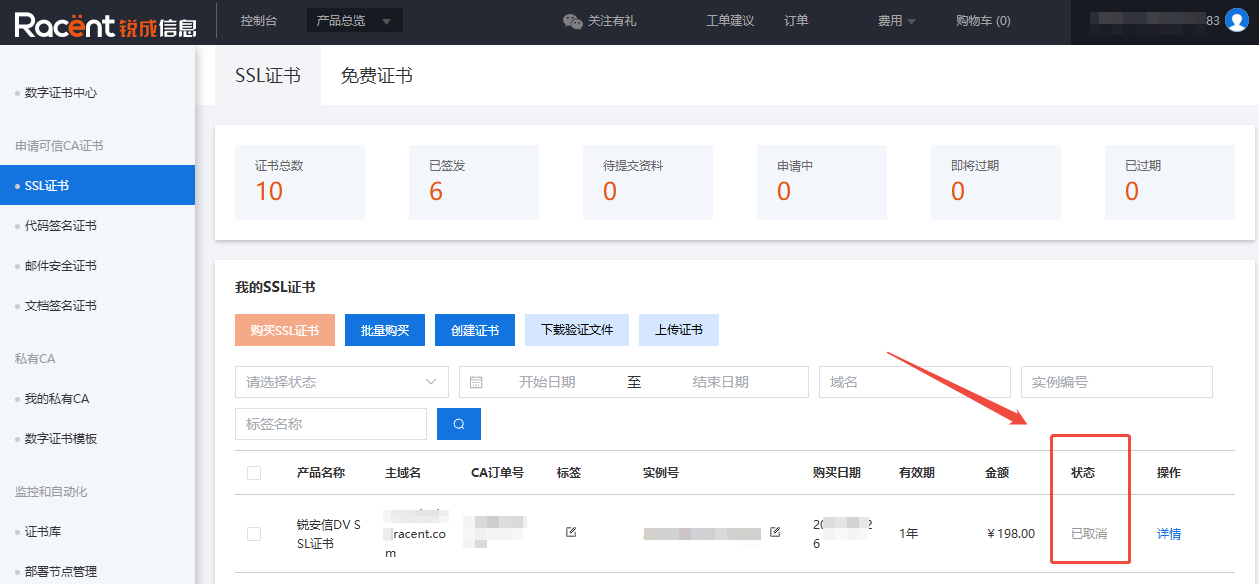
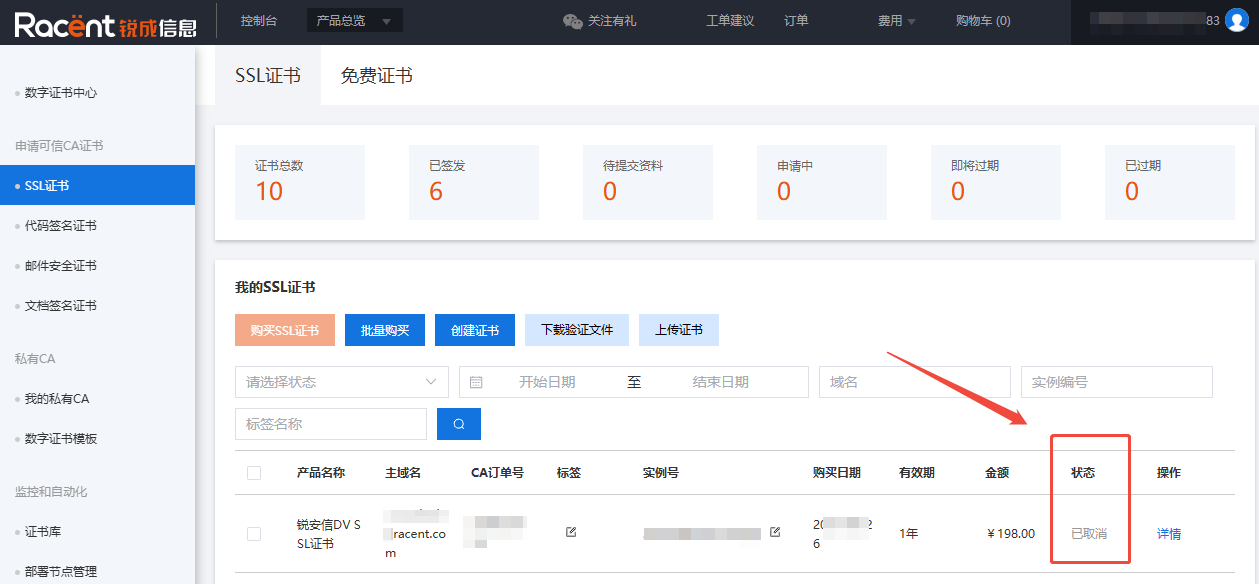
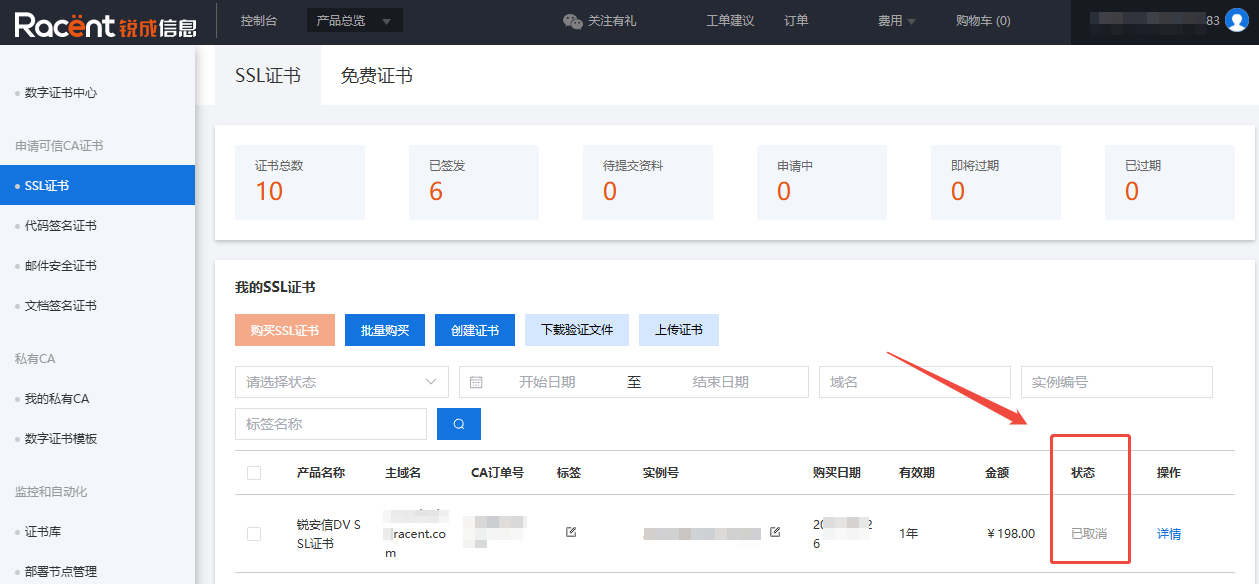
- Confirm the cancellation status: Return to the SSL certificate page, find the cancelled order, and check its order status. If the status shows "Cancelled", it means the order has been cancelled successfully.

- Apply and purchase: Re-select the certificate type according to your business needs and complete the purchase.
If the certificate you need to change the type for has already been deployed for business use, you can choose one of the following two options to avoid service interruption during certificate replacement:
- If the remaining validity period of the certificate to be replaced is more than 7 days when you cancel it, you can first purchase a new certificate, and cancel the original certificate only after the new certificate is issued and deployed successfully.
- If you have other available certificates, you can use them for temporary replacement first, and perform the replacement again after the new certificate is issued.
2. Change the certificate type for orders that have not submitted application materials
If the certificate request for the order has not been submitted, you can cancel the order at any time. The specific operation steps are as follows:
- Log in to the console: Log in to the Racent console (console.racent.com), and click 'SSL Certificate' to enter the SSL Certificate page.

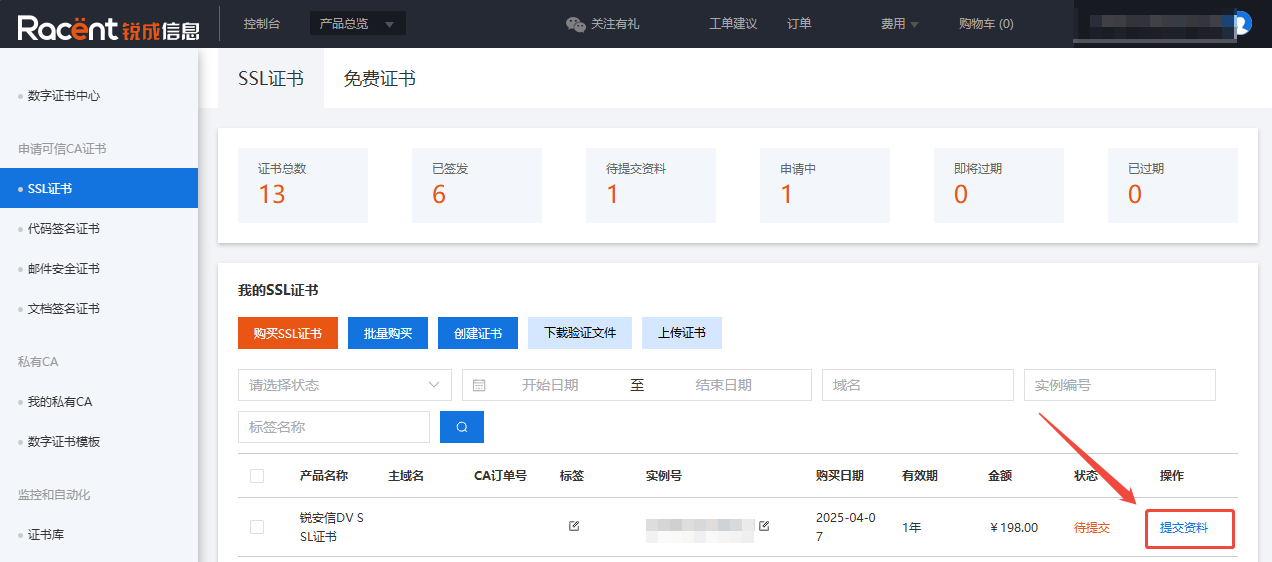
- Locate the order: Find the certificate order that needs to be cancelled > click Submit Materials.

- Cancel the order: After clicking Submit Materials, scroll to the bottom of the page, click the "Cancel" option, and confirm the cancellation.
- Confirm the cancellation status: Return to the SSL Certificate page, find the order you just cancelled, and check its status. If the status shows "Cancelled", the order has been cancelled successfully.

- Apply and purchase: Re-select the certificate type according to your business needs and complete the purchase.
3. Change the certificate type for orders that have submitted application materials
If the certificate request for the order has already been submitted, you can cancel the order at any time. The specific operation steps are as follows:
- Log in to the console: Log in to the Racent console (console.racent.com), and click 'SSL Certificate' to enter the SSL Certificate page.

- Locate the order: Find the certificate order that needs to be cancelled > click Details.

- Cancel the order: After clicking Details, click the "Cancel Order" option and confirm the cancellation.

- Confirm the cancellation status: Return to the SSL Certificate page, find the order you just cancelled, and check its status. If the status shows "Cancelled", the order has been cancelled successfully.

- Apply and purchase: Reselect the certificate type according to your business needs and complete the purchase.