Create a Signing Task
sslTrus Remote Code Signing Tool download page: https://pccs.ssltrus.cn/oss-code-sign-client/index.html
This article mainly introduces how to create a signing task using the sslTrus Remote Code Signing Tool.
sslTrus Code Signing Tool
-
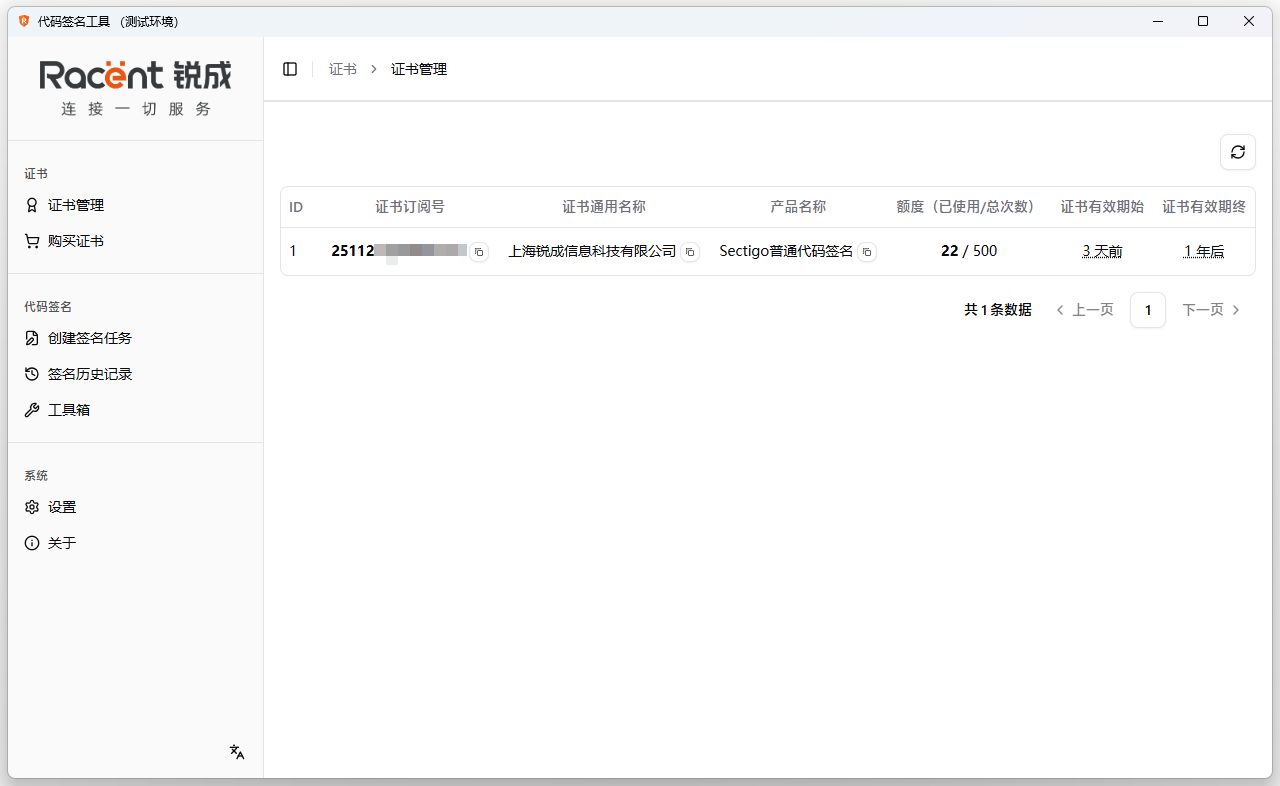
Double-click to open the sslTrus Remote Code Signing Tool.

-
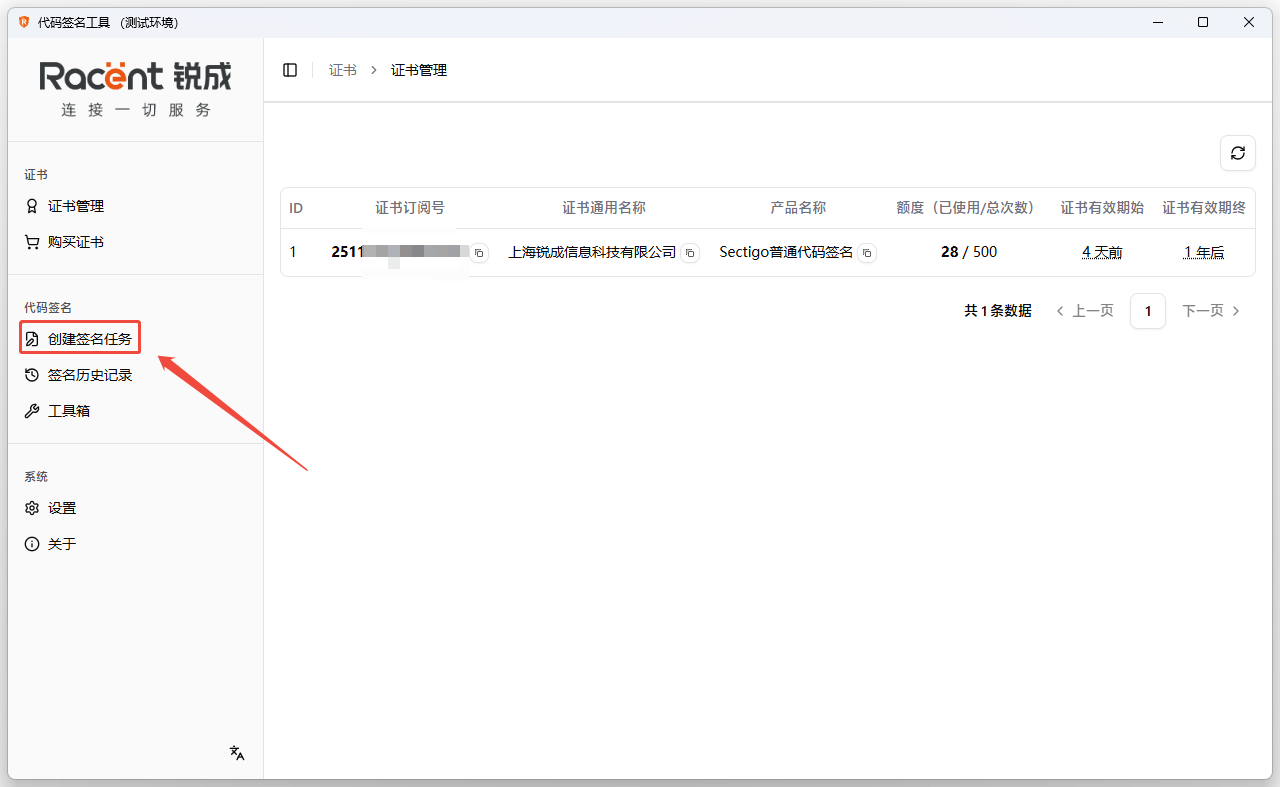
Click the Create Signing Task option in the left list.

Create a Signing Task
-
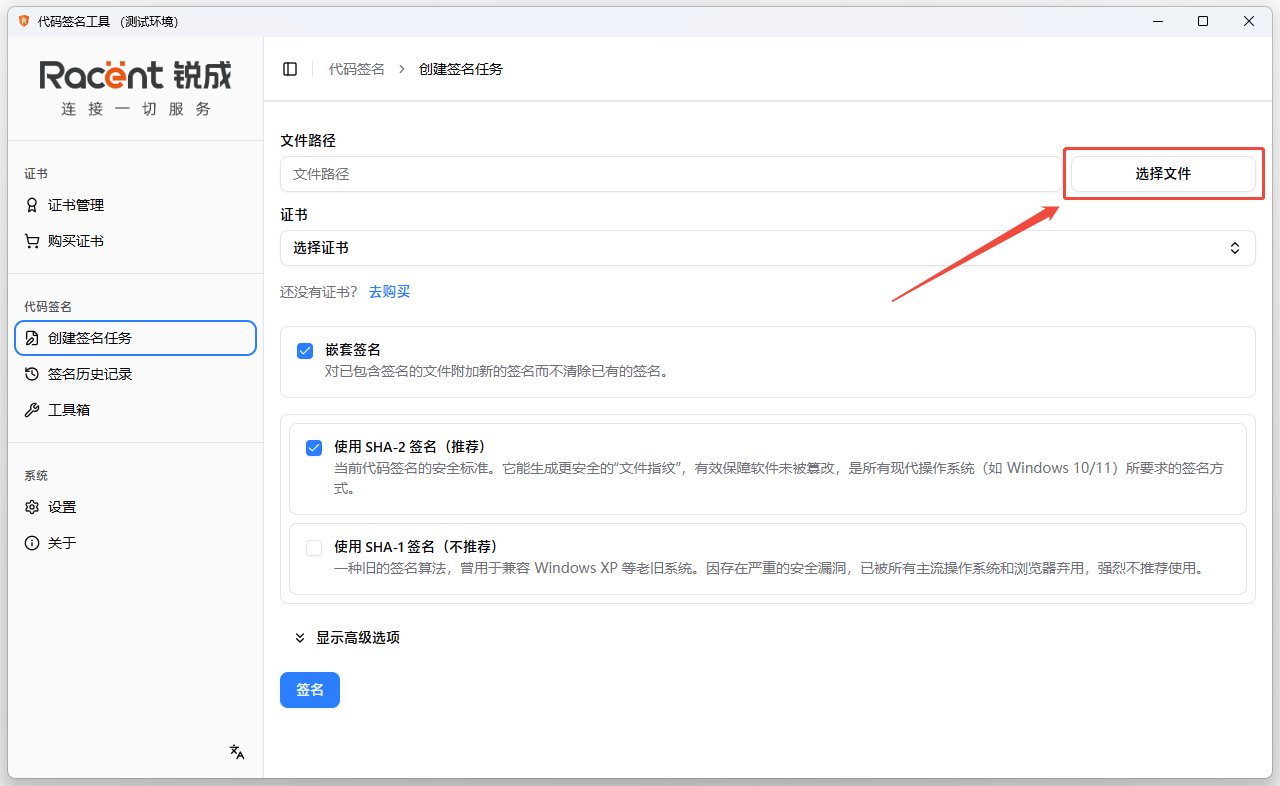
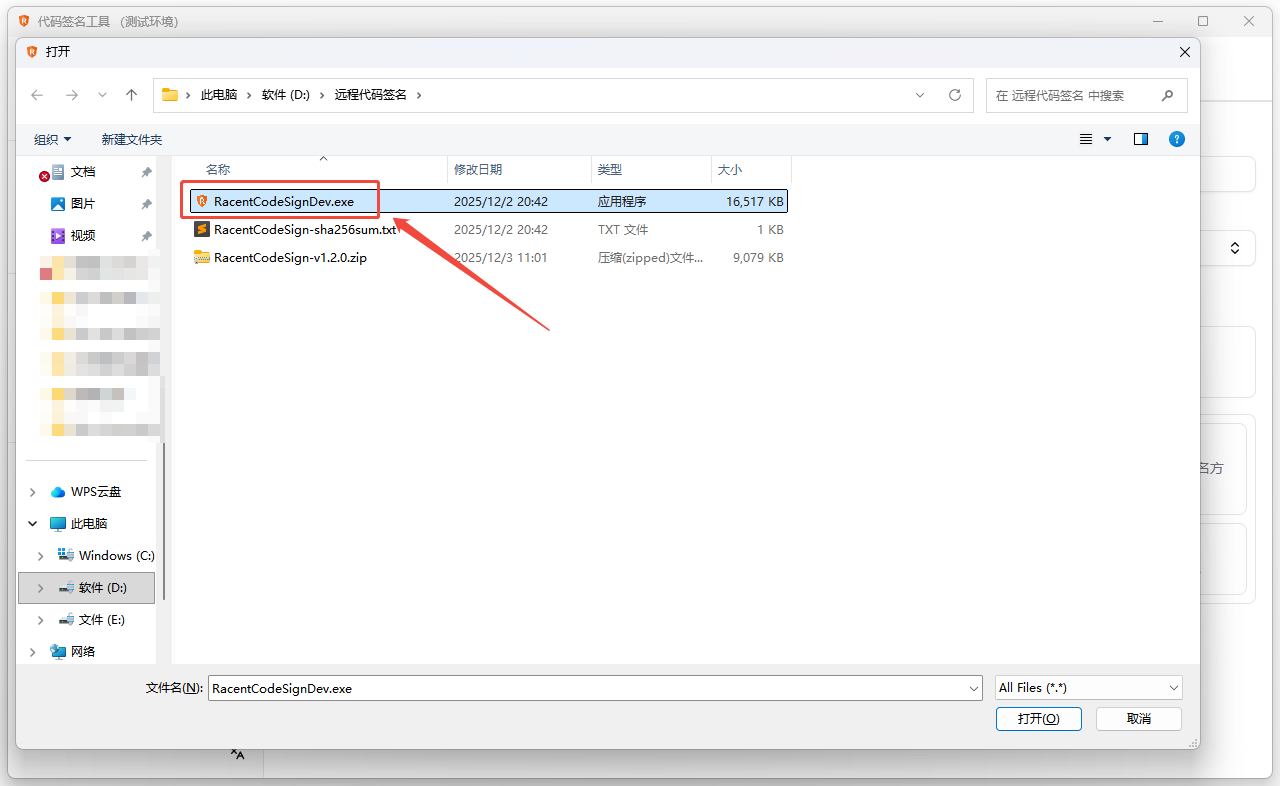
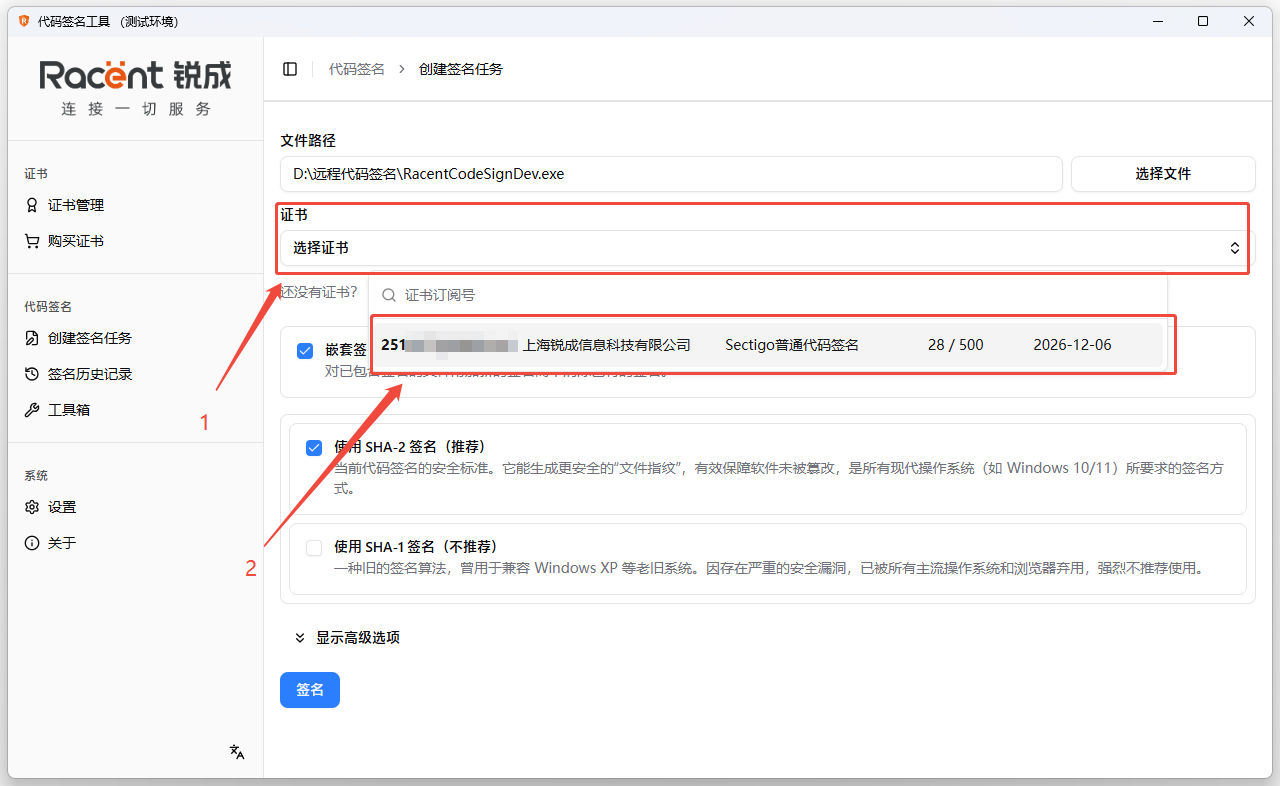
On the Create Signing Task page, click Select File to choose a file that needs to be signed.

-
Here we take selecting the sslTrus Code Signing Tool for signing as an example.

-
Click Select Certificate to choose an issued code signing certificate. The data information includes the certificate subscription ID, the enterprise name on the certificate, the certificate brand, the number of remaining signatures available for this remote code signing service, and the signing date.

-
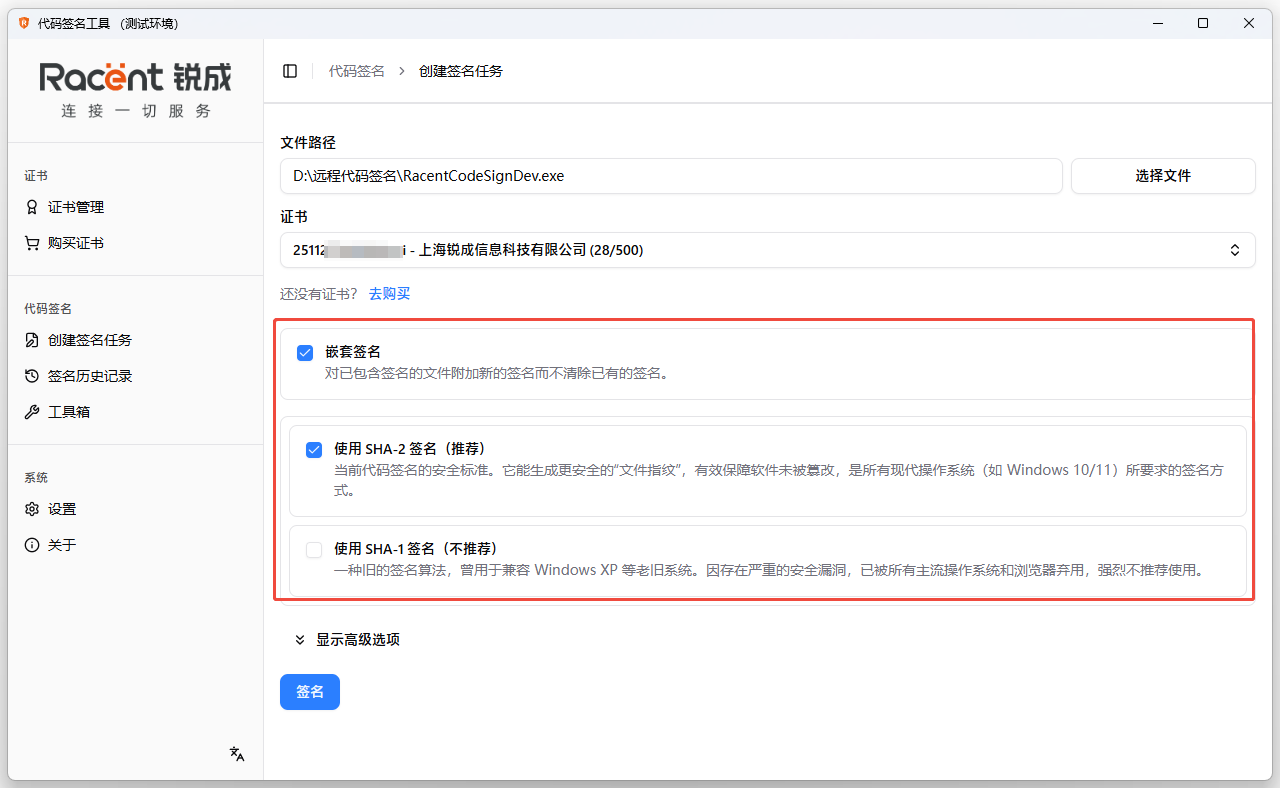
Select whether to perform Nested Signature (appending a new signature to a file that already contains a signature without removing the existing signature), choose the signing algorithm SHA-1 or SHA-2, and we also support dual signing.

-
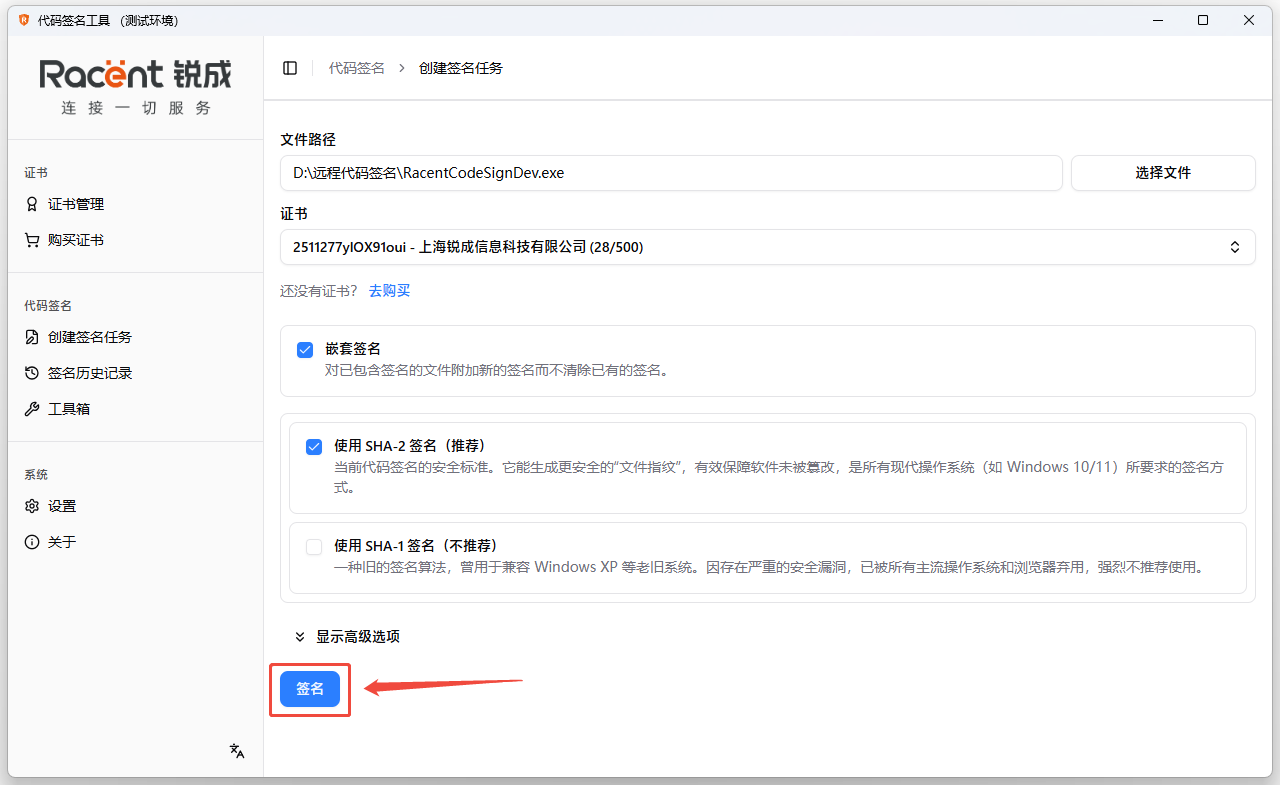
After completing all options, click Sign to finish the signing process.

-
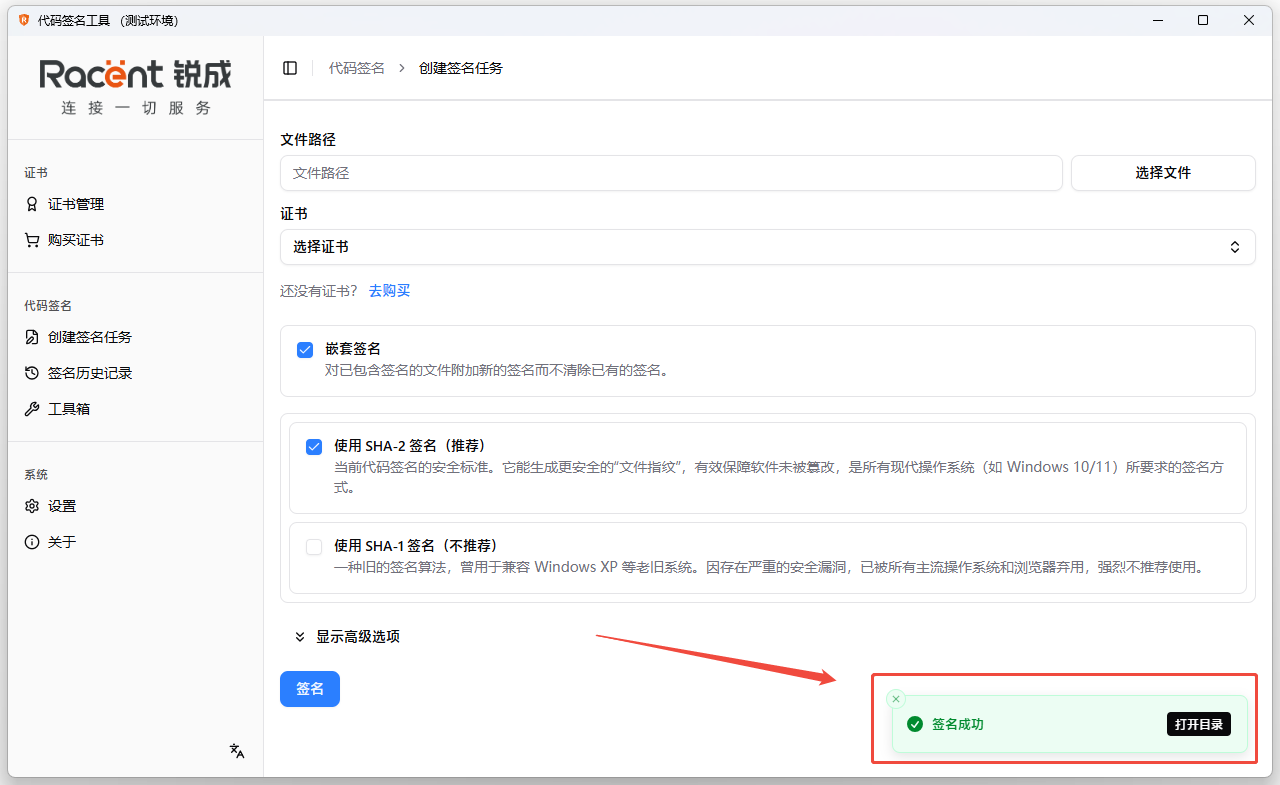
This prompt indicates that the signing was successful.

Check the signing result
-
Click the Signing History option on the left.

-
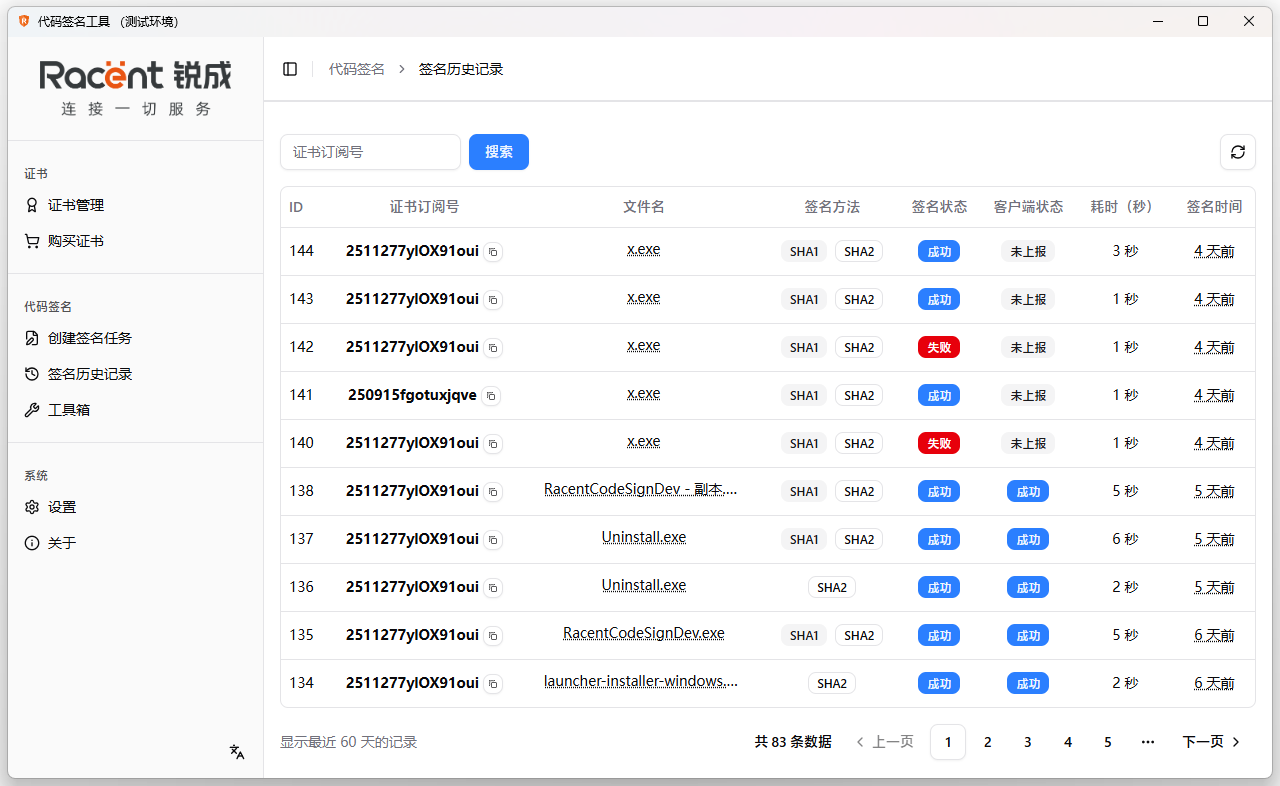
You will enter the signing history page, where you can view all signing history records.

-
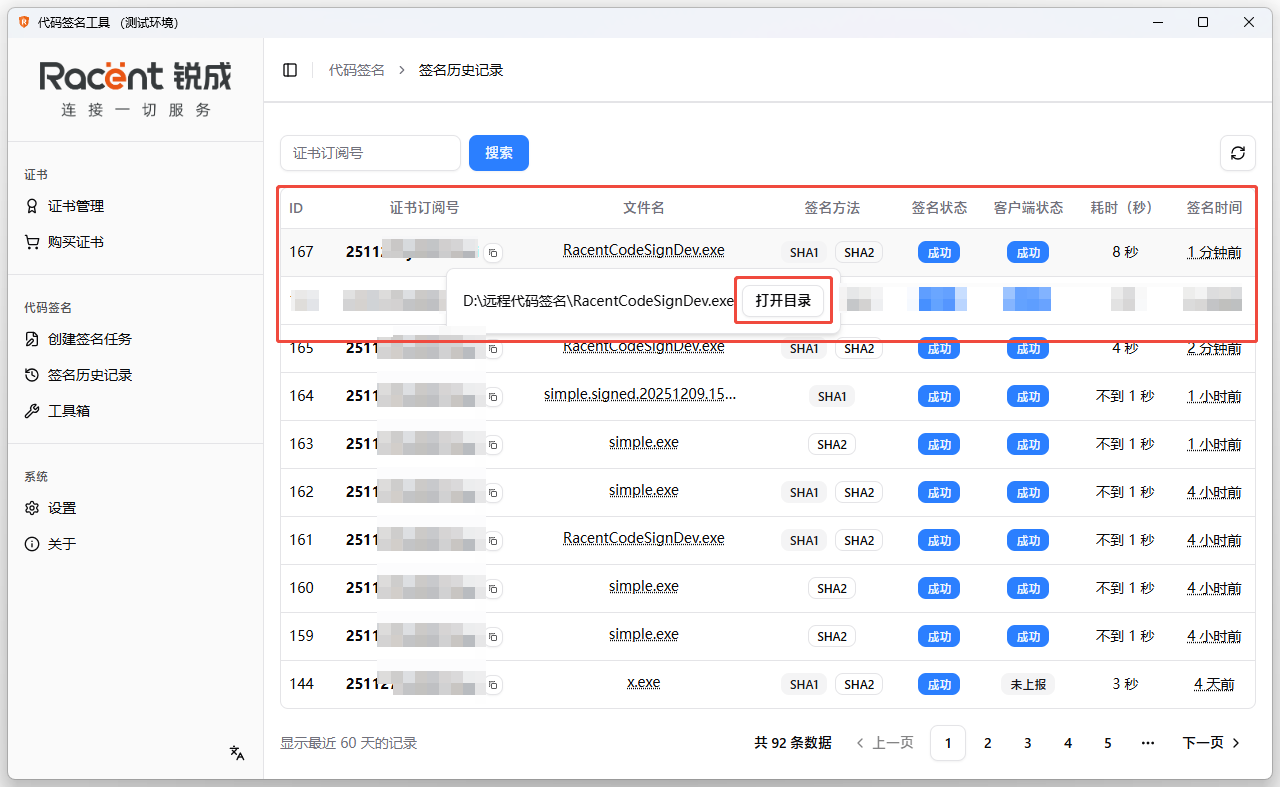
The first entry is the file we just signed. Hover over the file name to see its save directory, then click Open Directory.

-
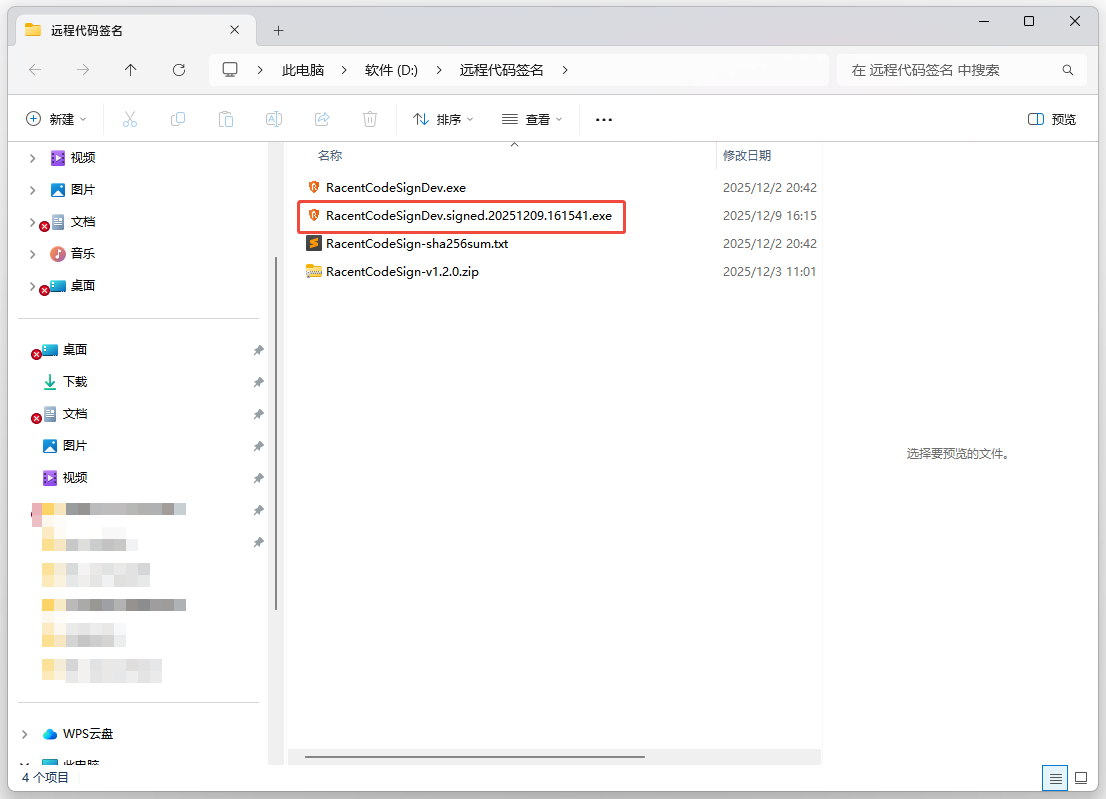
After opening the directory, locate the signed file and right-click to select Properties.

-
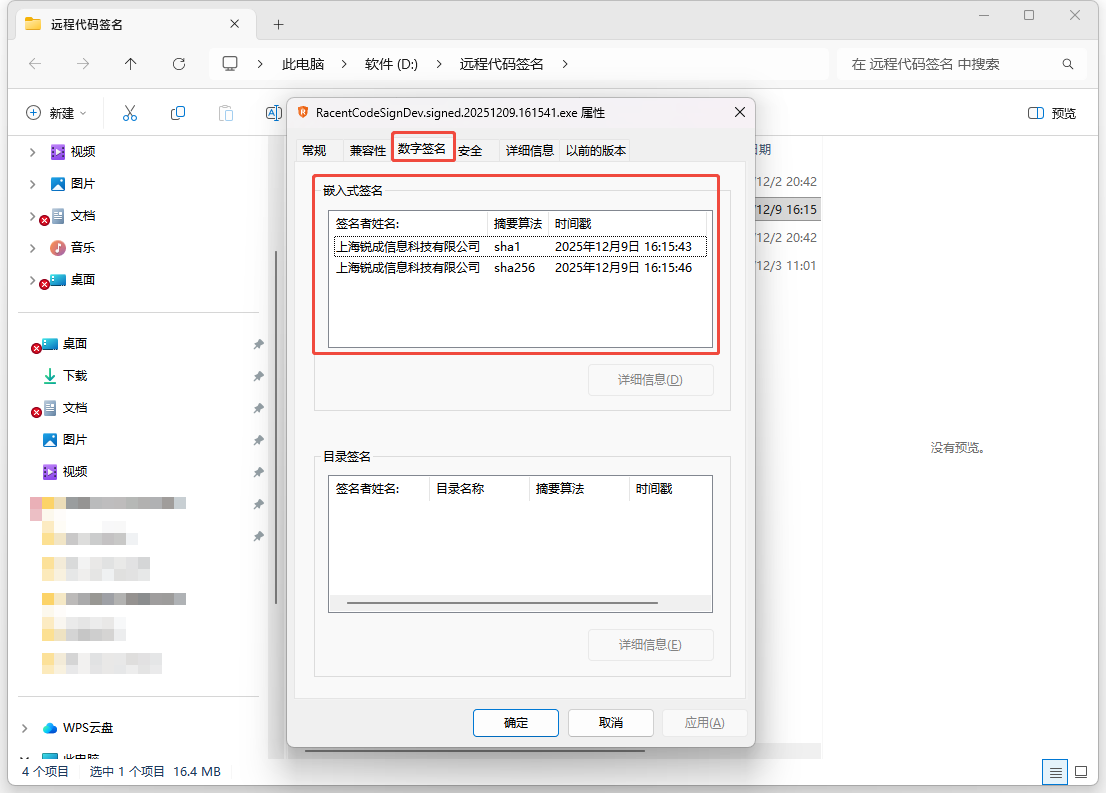
After opening the Properties window, select Digital Signatures. The completed dual-signing task will be displayed under the embedded signatures section below.