Remote Code Signing Tool Configuration

Tool Download URL

sslTrus Remote Code Signing Tool Download Page: https://pccs.ssltrus.cn/oss-code-sign-client/index.html

This article mainly introduces how to configure the sslTrus remote code signing tool after downloading it. There are two types of access keys:

  • Account-wide key: Configuring an account key allows you to manage all code signing certificates and remote code signing services across the entire account.
  • Per-subscription key: Configuring a subscription key only allows you to manage the code signing certificate and remote code signing service for an individual subscription.

Obtain Access Keys

Log in to Your Racent Account

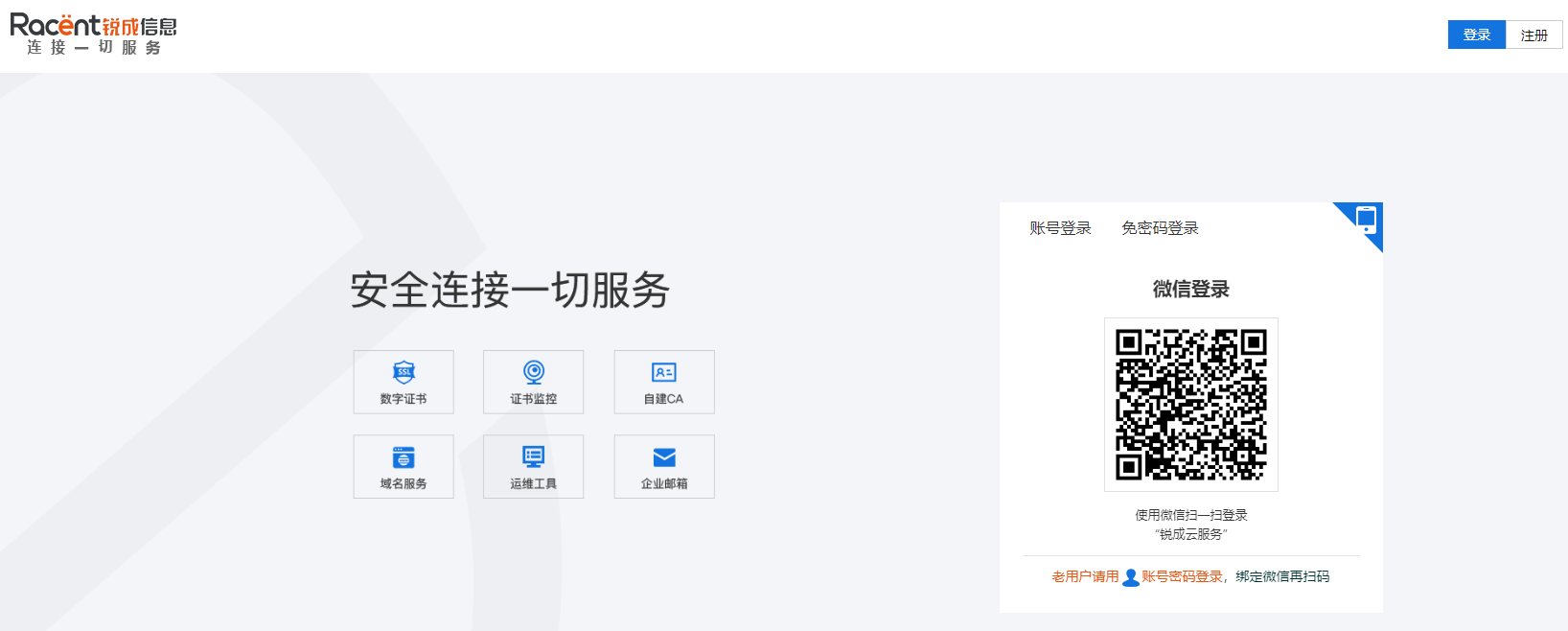
  1. Enter https://www.racent.com/ Racent Official Website

  2. Click Log In as shown in the image below (if you do not have an account, please register first)

    buysslstepbystep

Obtain Account Key (AK/SK)

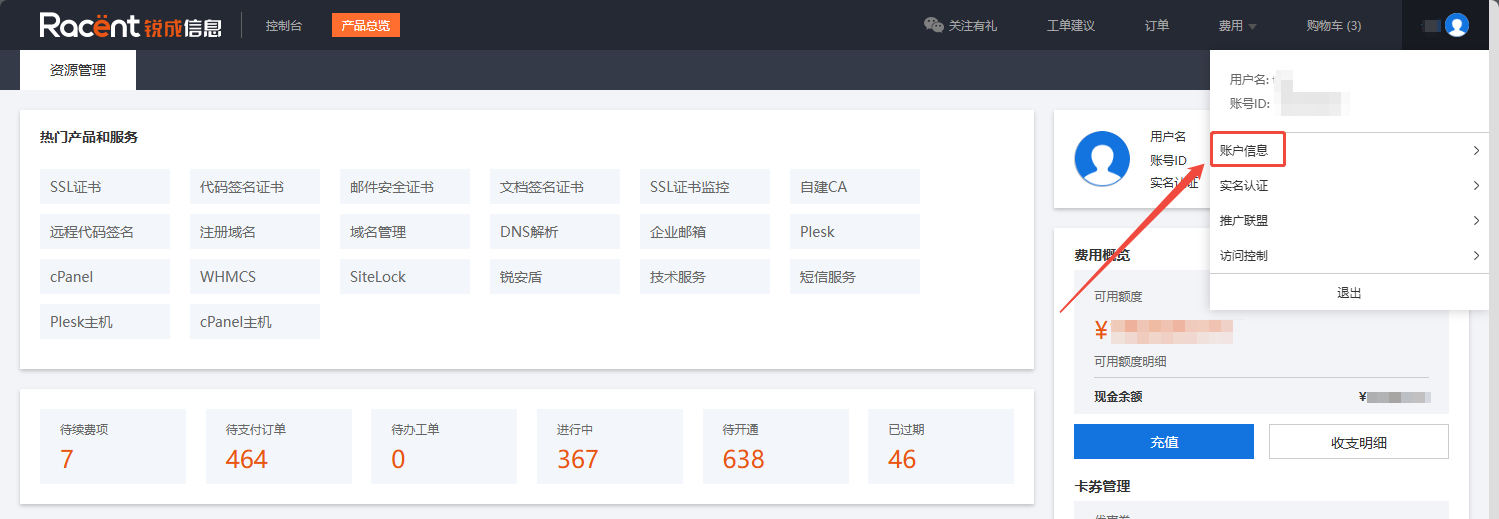
  1. After logging in, enter the Racent platform. Hover over the top-right corner and click Account Information.

    Account Information Option on Racent Platform

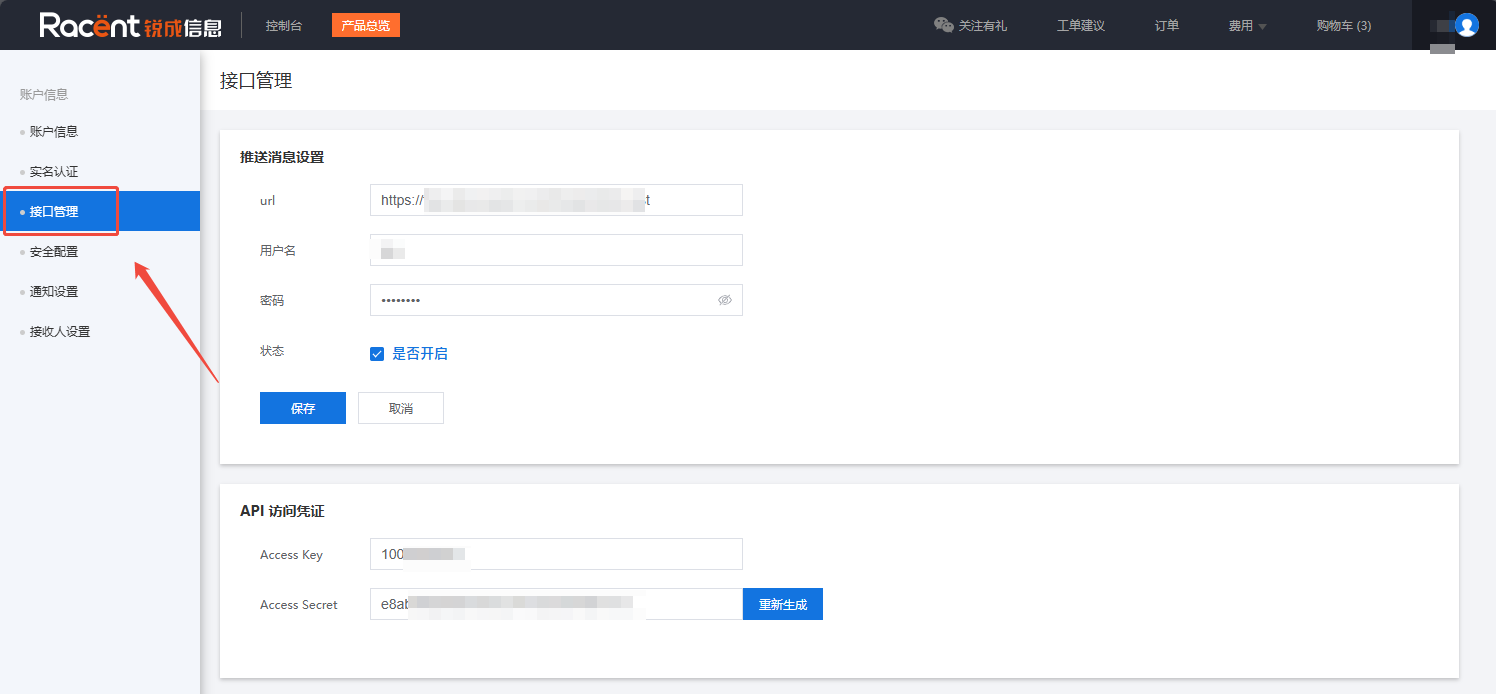
  2. Click API Management on the left side of the Account Information page.

    Racent API Management Option

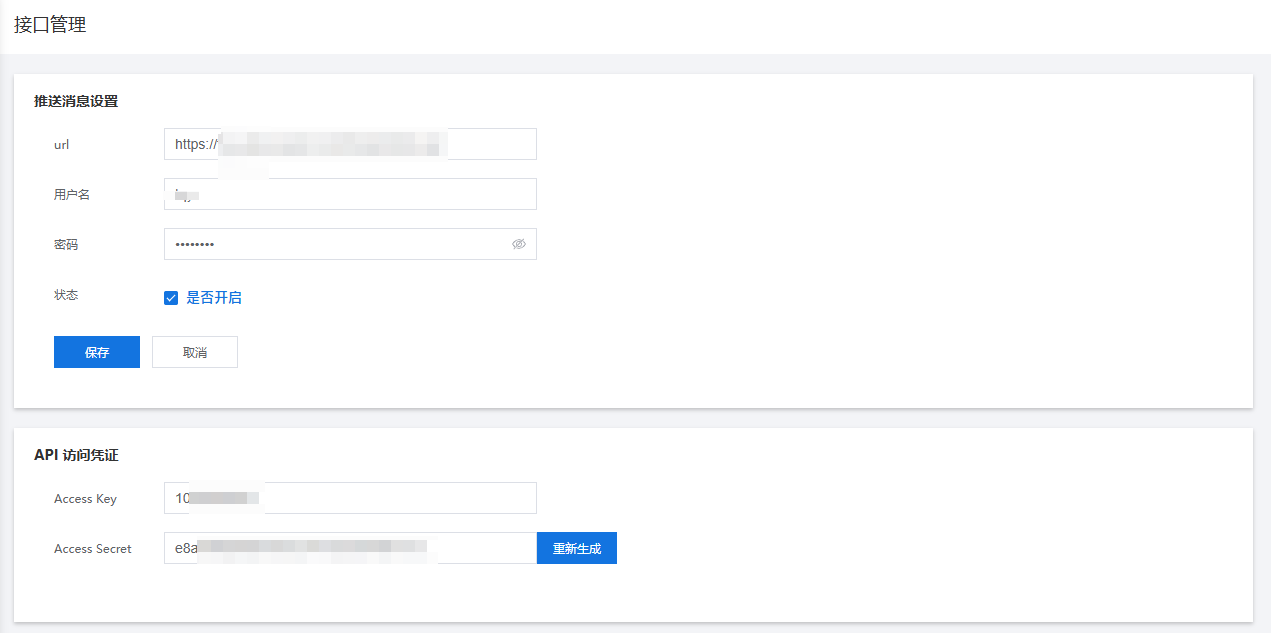
  3. Obtain your AK/SK in the API credentials section on the API Management page. If Access Secret is empty, click the Generate option.

    Racent Platform Account Key

Obtain Subscription Key (AK/SK)

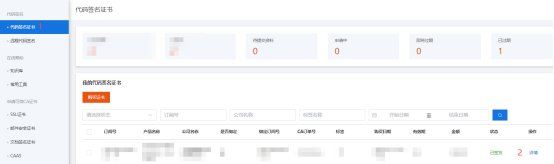
  1. After logging in, enter the Racent platform, go to the Code Signing Certificates page. On the code signing certificate management interface, locate the code signing certificate you need to manage, then click Details -> Security

    Racent Middle Platform Account Information Option

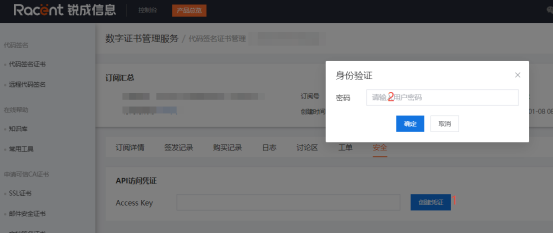
  2. Under the Security tab, click the "Create Credential" option at the end of Access Key, complete identity verification and then click "Confirm".

    Racent Subscription Information

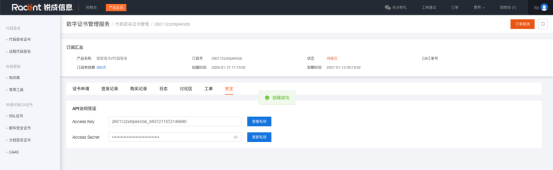
  3. After completing the above steps, the Access Secret will be generated. Collect the Access Key and Access Secret to proceed with the subsequent configuration steps.

    Racent Code Signing Subscription Key


Configure Key

  1. Double-click to open the sslTrus remote code signing tool.

    sslTrus Code Signing Tool

    sslTrus Code Signing Homepage

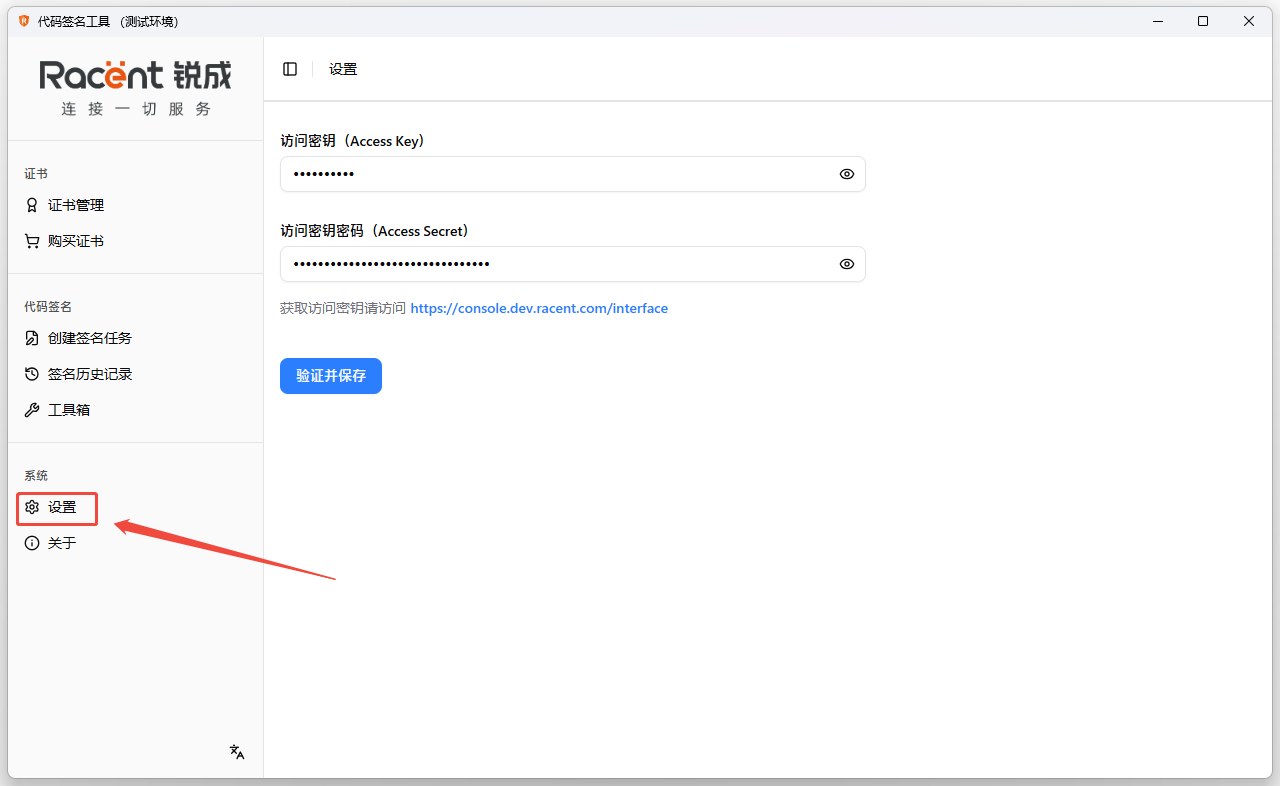
  2. Click the Settings option in the left list.

    Racent API Management Page

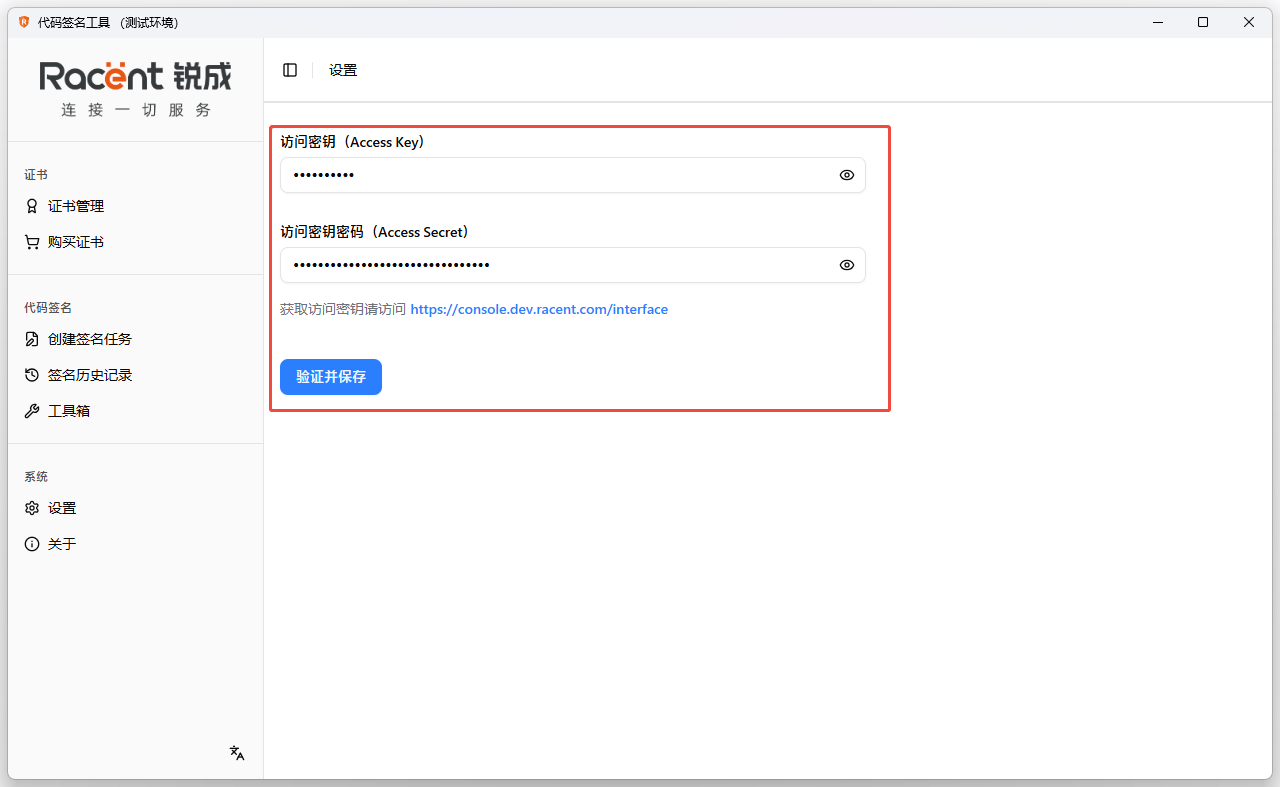
  3. Fill in the credentials obtained from Obtaining Access Credentials into the access key and access password fields respectively, then click Verify and Save.

    Racent API Management Page

    Note

    If you get this error, please check whether Access Key matches Access Secret. Racent API management page

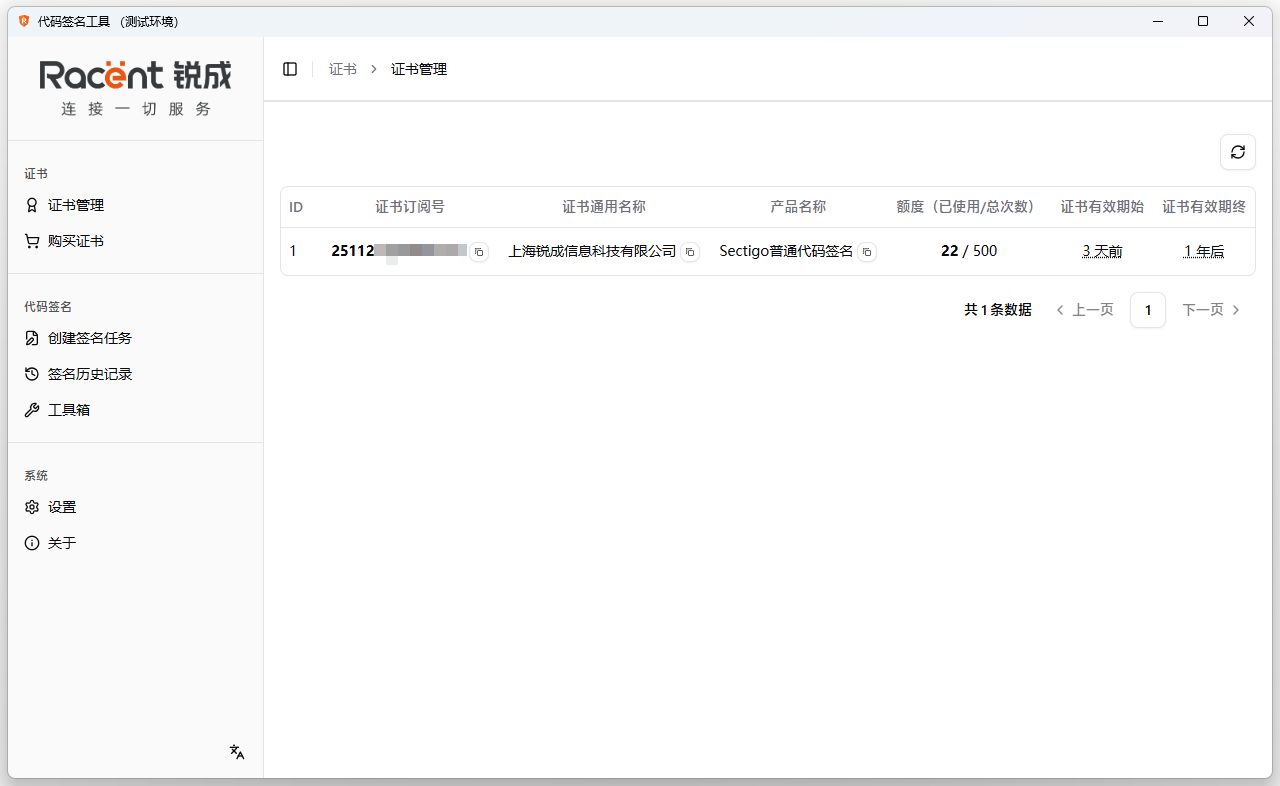
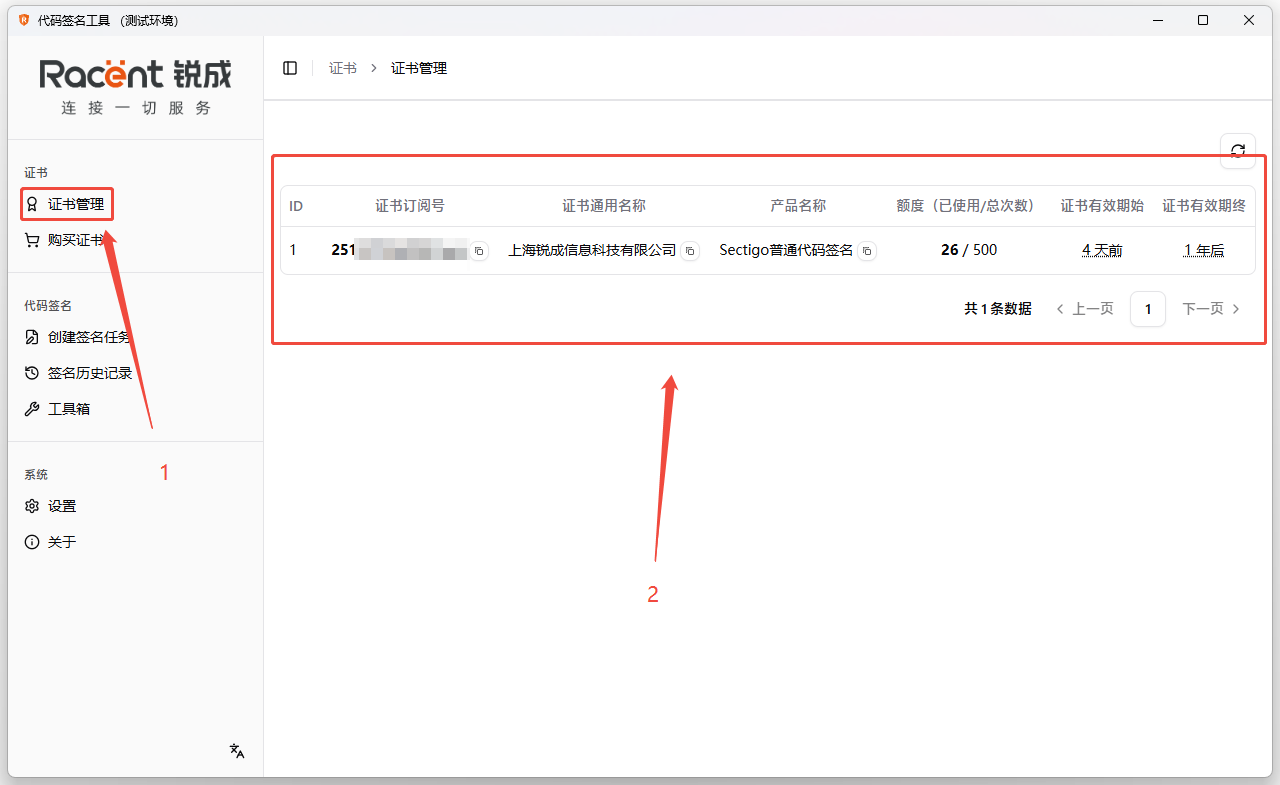
  4. After verification is passed, if there are issued code signing certificates under this account, they will be automatically synchronized to the Certificate Management page, where you can click to view them.

    Racent API management page