Submitting SSL Certificate Request Information

This article provides a detailed explanation of the complete process for submitting SSL certificate request information, including a guide to generating a CSR on the Racent platform, configuration methods for domain validation (Email/DNS/File), and filling specifications and notes for wildcard certificates and OV/EV certificates, to help you complete your certificate request efficiently.

There are two ways to generate a CSR:

  1. Generate using a tool. For CSRs generated via a tool, you must securely keep the key .key file on your own

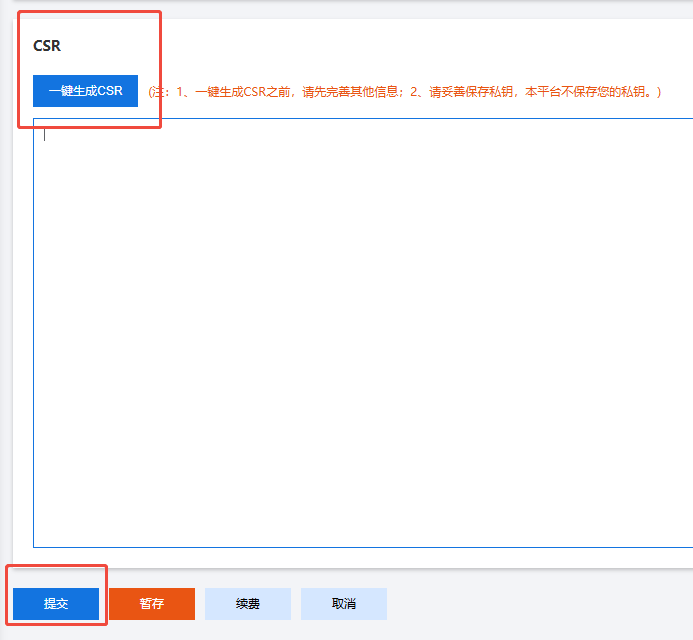
  2. Select "Generate CSR with one click" when submitting request information through the Racent platform

tip

The certificate key for certificates issued from CSRs generated via the Racent platform can be found and downloaded in the certificate details after the certificate is issued

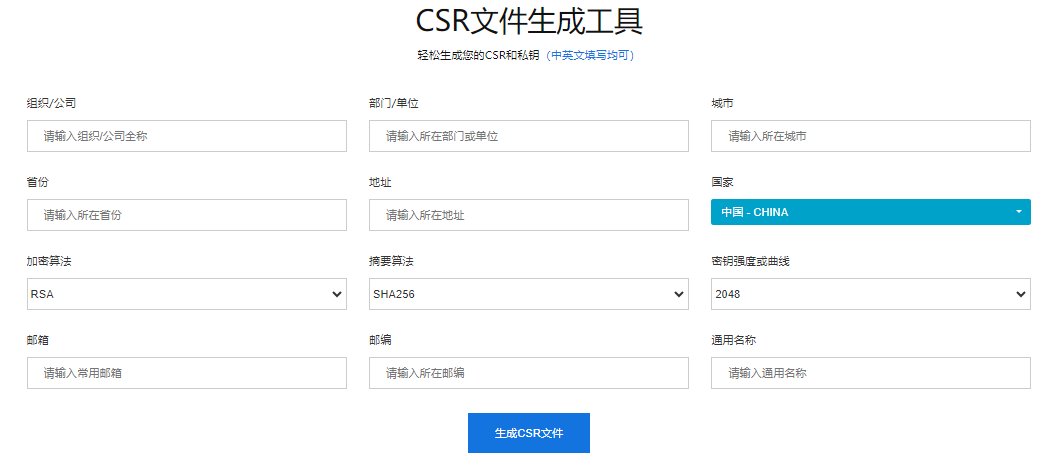
Generate a CSR using a tool first

  • Open the tool: CSR Generation Tool Link

  • Use the tool to generate a CSR (all information must be filled in completely, with no leading or trailing spaces)

  • Properly save the private key (the .key file) on your own

    sslrequest


Prerequisites for submitting a certificate request

Before submitting a certificate request, the prerequisite is that you have purchased a certificate

Purchase steps: On the SSL Certificates page -> Click Buy SSL Certificate -> Select the certificate you need and complete the purchase order

For specific purchase details, please refer to the SSL Certificate Purchase Guide

Certificate request steps

Log in to Racent

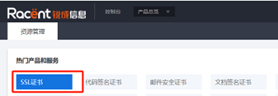
Go to the SSL Certificates page

  • Click the "SSL Certificates" option

    sslrequest

Go to the information submission page

  • Locate the SSL certificate you purchased earlier, and click the 'Submit Information' option next to it

    sslrequest

Enter the domain name and select a validation method

  • Enter the domain name to be protected by the certificate, and select a domain validation method (DNS/File/Email validation)

    sslrequest

    Tip
    • When submitting a certificate request for a Wildcard certificate, use the following format: for example, for example.com, you need to add *. before the domain name, and enter *.example.com in the input box.
    • Wildcard certificates do not support file-based validation.

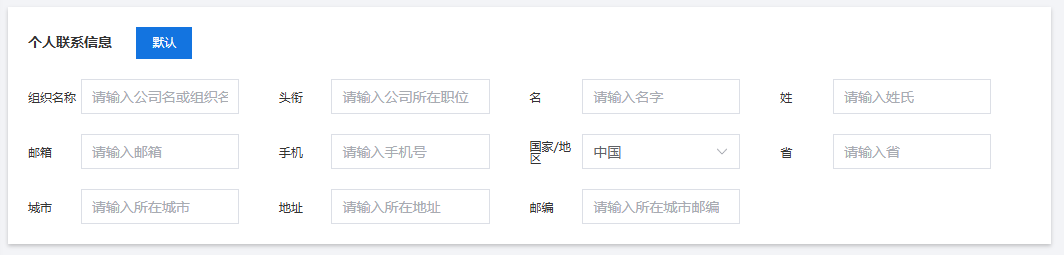
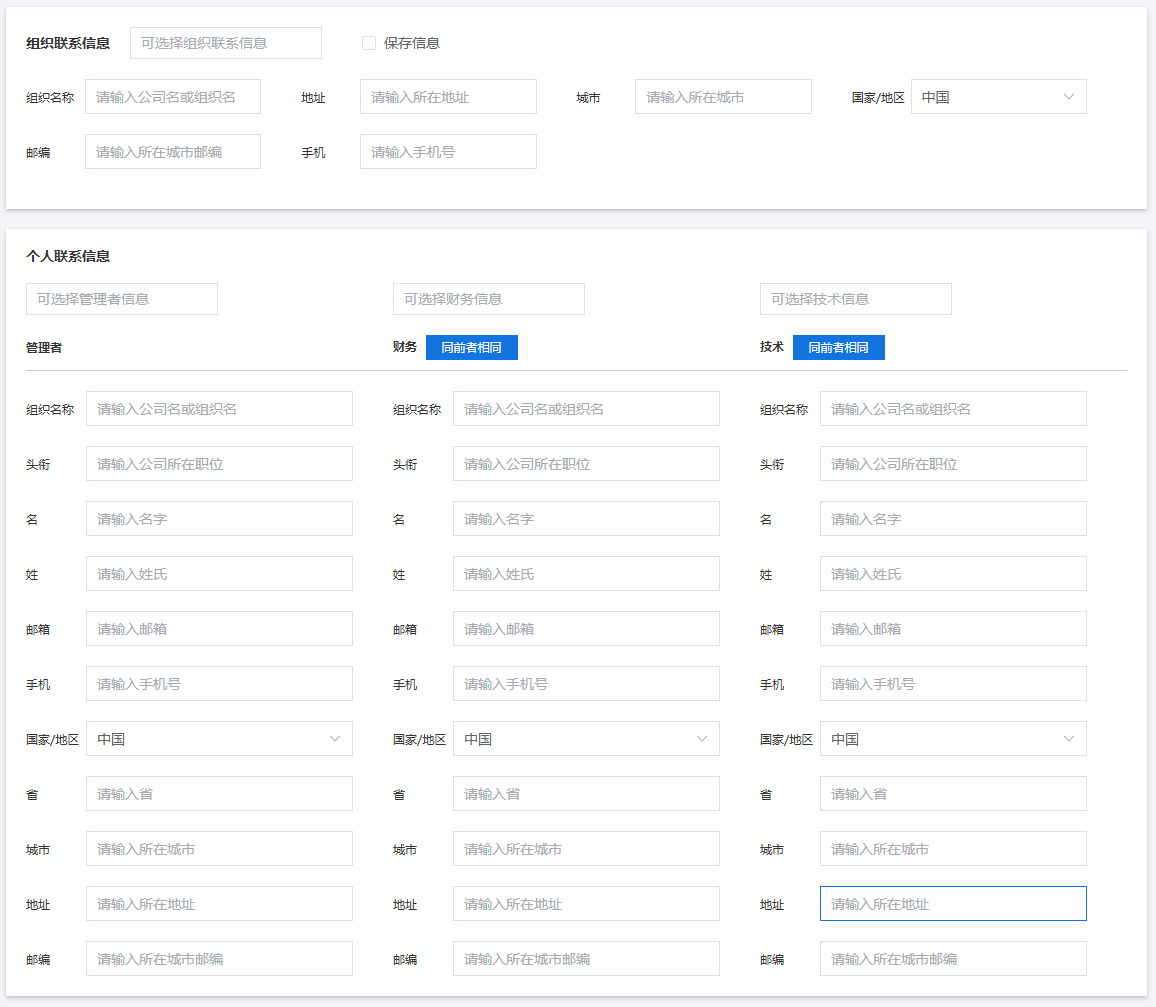
Fill in organization information/personal information

  • Fill in the remaining information according to the certificate type, such as organization information, personal information, etc.

    • DV certificate: You only need to fill in a valid email address; other information can remain as default.

      sslrequest

    • OV/EV certificate: All information must be filled in, and must be valid and authentic.

      sslrequest

      Note
      • For Sectigo enterprise-level orders, the address must be filled in as the registered address.

Fill in the CSR

  • After completing all information, click the "Generate CSR with one click" option at the bottom of the page, then click the "Submit" option to submit the certificate request.

    sslrequest
    Note
    • If you generated the CSR via the first method or other tools, you can paste the CSR directly into the input box above.
    • CSRs generated elsewhere must completely match the information filled in above (such as organization name and domain name).
    • If the filled information does not match the CSR, it will delay the issuance process (for example, the certificate will remain in the pending request state for a long time) or require you to submit a new certificate request.

Description of domain validation methods

After submitting the certificate request, you will need to complete Domain Control Validation (DCV). There are three domain validation methods:

  • Email validation
  • DNS validation
  • File validation

Email validation

You may only use the following five administrator email addresses and the Whois email address for validation (take example.com as an example):

Note
  • If you choose email validation for Domain Control Validation (DCV), select one of the above email addresses, access the corresponding email inbox, and complete the validation.
  • All Certificate Authorities (CAs) have phased out Whois email validation.

DNS validation

After the order is submitted, you can view the DNS resolution records in the order list and order details:

sslrequest

Set specific record values to verify domain validity. For details, refer to the article: 《DNS Resolution Verification Settings for Different Platforms》

To check if the resolution record is added successfully, please see 《How to Check If DNS Resolution Records Are Set Successfully》

File Verification

Place the verification file in the root directory of the domain's server. The typical path is:

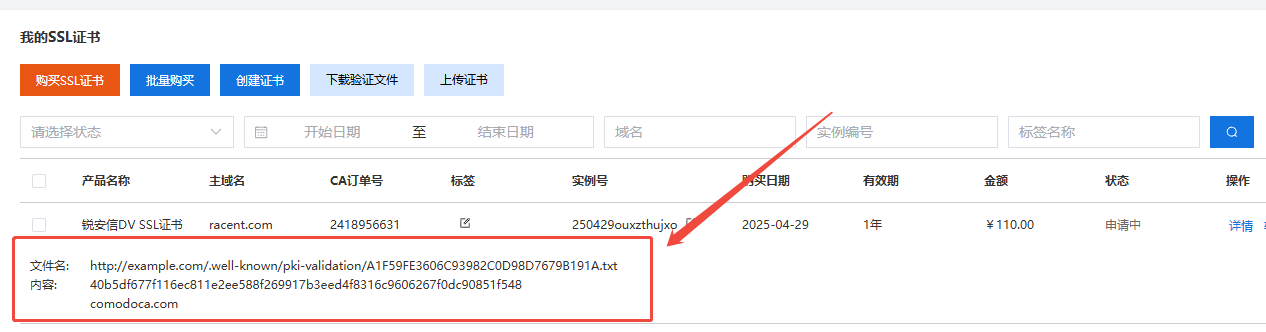
  • http://example.com/.well-known/pki-validation

After submitting the application materials, the content required for file verification will be provided on the SSL certificate order page. For detailed file verification instructions, please refer to 《SSL Certificate File Verification Instructions》


Notes

Note
  • Wildcard certificates do not support file verification.
  • IP addresses can only use file verification (CFCA file verification has no port number restrictions).
  • For Digicert DV orders, resolution records must be added before submission.