How to check if DNS resolution has been set up successfully

If the customer selects DNS verification during the Domain Control Validation (DCV) phase and has already added the DNS resolution record on the domain management platform, how can they check whether the added resolution has taken effect?

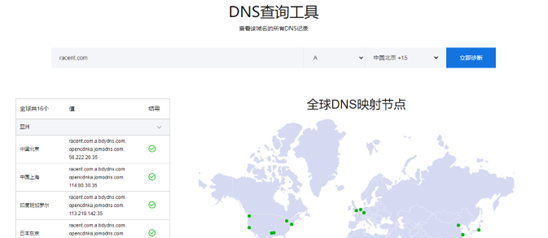
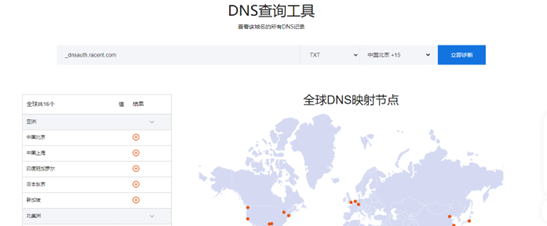
The figures below show a successful resolution result (using a query for the A record of the racent.com domain as an example, with the host record set to @) and a failed resolution result (using a query for the TXT record of the racent.com domain as an example, with the host record set to _dnsauth) via a DNS query tool:

  • Example of successful resolution:

    checkdnsstate

  • Example of failed resolution:

    checkdnsstate

I. Query resolution using a DNS query tool:

You need to use the DNS query tool to check whether DNS resolution has taken effect;

DNS resolution records generally used for verification consist of three parts: host record, record value, and record type:

  1. First, enter the host record.domain in a DNS query tool; the DNS resolution host record varies generally across different certificate brands. For example, the host record for Sectigo and sslTrus is _随机字符 (a random value with an underscore), the host record for DigiCert is _dnsauth, the host record for GlobalSign is @ or left blank, and the host record for CFCA is _cfcachallenge, etc. The entered domain must be the exact domain to which you are adding the resolution record. Example: If the host record is _dnsauth, and the customer added the domain on a.b.com, then the content entered for query should be _dnsauth.a.b.com.

  2. Then select the corresponding record type (usually TXT or CNAME type).

  3. Click Query, and the corresponding record value will be displayed on each node shortly. If the displayed record value matches the verification record value, it means the resolution has been added successfully.

II. Troubleshooting steps when the record value displayed by the DNS query tool does not match the verification value:

If the displayed record value does not match the verification record value you need to add, or if no record value is displayed at all, possible causes can be investigated from the following aspects:

  1. First, check your domain's validity period, which can be queried via whois (whois.com). If the domain shows as expired, its resolution will be suspended.

  2. If the domain status shows as "serverhold" or "clientHold" (check in the status column), resolution is unavailable. You will need to contact your domain registrar to complete real-name verification, or investigate the reason for the hold status and resolve it.

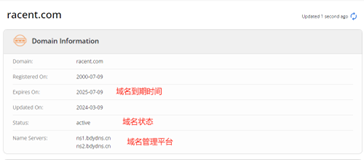
  3. Confirm that the platform where you add DNS resolution records is the current domain management platform for that domain (subject to the nameservers displayed in whois). The specific steps to view domain-related information on whois are shown below:

    1. Go to the whois homepage, enter the domain name you want to check in the search bar at the top right of the homepage, and click to enter.

    checkdnsstate

    1. You may be redirected to a verification page after entering; pass the verification to enter the domain information page. The basic information that requires checking is shown in the figure below.

    checkdnsstate

  4. Confirm whether you have modified the DNS servers within the past 48 hours. You can check this with the colleague who manages your domain. If you did modify the DNS servers, note that the time for resolution to take effect depends on the TTL of the DNS server name cached in the local DNS, which generally takes 24 to 48 hours, the exact time varies by region and ISP. Therefore, within 48 hours after modifying DNS servers, the resolution data on both the new and old DNS service providers must remain consistent. If you deleted resolution records at the original DNS service provider, failed to add resolution records at the new DNS service provider, or the resolution records added on the new and old DNS service providers are inconsistent, this may cause resolution failure, or lead to the site being accessible normally at times and abnormal at other times.

  5. Check the resolution values you added:

    1. Ensure the resolution values are added correctly, including the host record, record value, and record type, all of which must match the target resolution record exactly.
    2. Check whether a default resolution line is configured. If a non-default resolution line is used, some network types may fail to match the resolution rules.
    3. Check the TTL setting (the default value is generally 600, which means resolution takes effect in about ten minutes). If the TTL is set to a longer value, such as one hour, you will need to wait longer for the resolution to take effect. If the TTL is set excessively long, for example longer than one day, you can readjust the TTL to shorten the resolution propagation time.
  6. Check for network or security restrictions. Local firewalls and security software may block DNS requests, so you need to review their rule settings. If you still cannot identify the cause of resolution failure after completing the simple troubleshooting steps above, we recommend contacting your DNS service provider for further investigation.