How to import root certificates and intermediate certificates on Windows Server?

If you generated the CSR file using IIS, you need to manually import the root certificate and intermediate certificate in the server certificate chain before deploying the server certificate. For detailed steps, refer to the operation guide for importing root certificates and intermediate certificates on Windows Server.

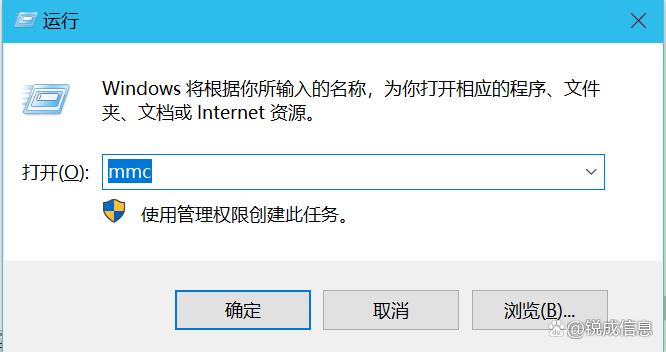
  1. Press the Windows + R key to open the Run window, enter mmc to open the Management Console.

    deployrootintermediate

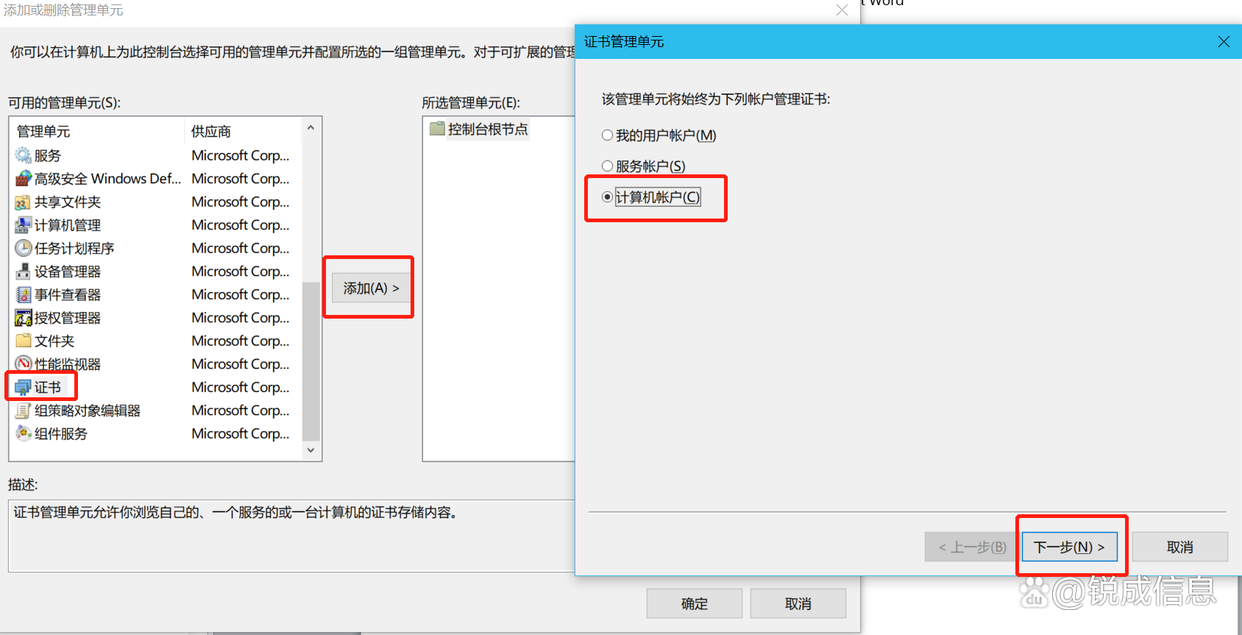
  2. Click File, select Add/Remove Snap-in, choose Certificates from the Available snap-ins list, then click Add. In the pop-up window, select Computer account and confirm.

    deployrootintermediate

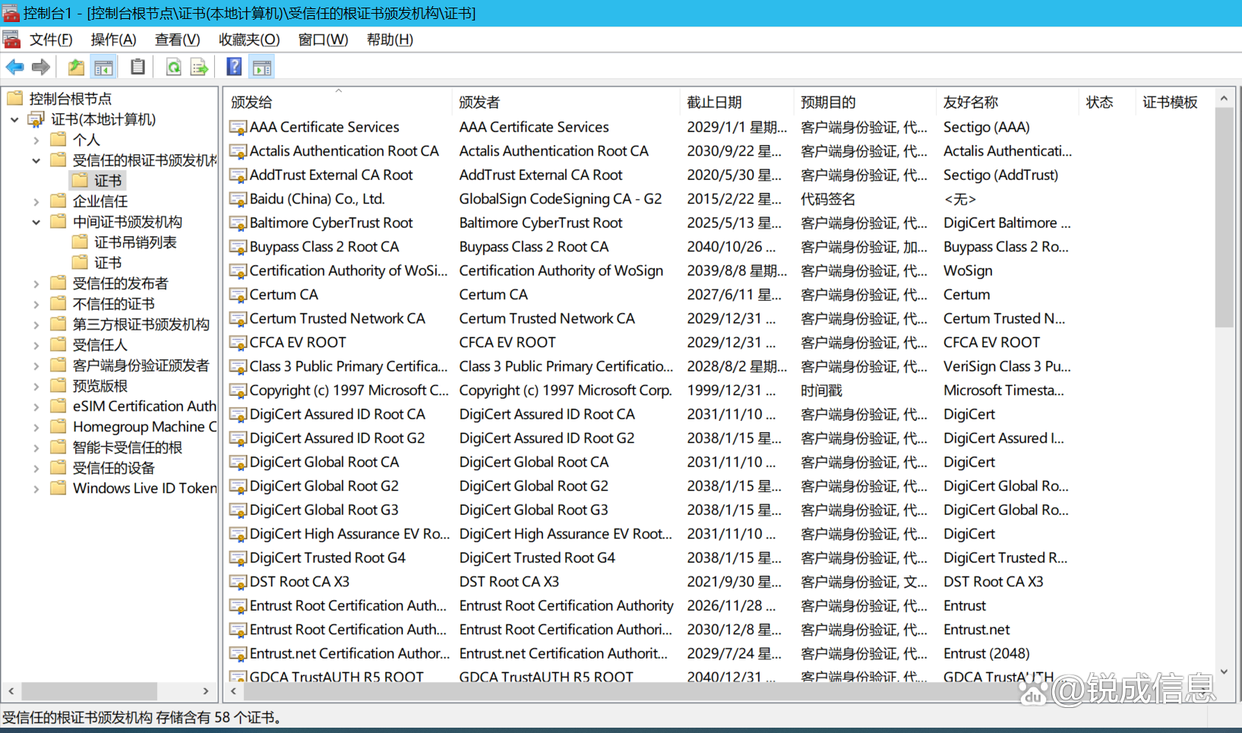
  3. If the root certificate is missing, click Trusted Root Certification Authorities in the left list, right-click in the blank area on the right pane, select All Tasks > Import to import the CRT root certificate. If the intermediate certificate is missing, use the same method to import the intermediate certificate. (Prerequisite: Download the root certificate and intermediate certificate in advance.)

    deployrootintermediate

Currently, many trusted root certificates are stored on this device, including those from Sectigo, CFCA, Certum, Digicert, Globalsign, Actalis, Entrust, and other CAs.

deployrootintermediate

After the root certificate and intermediate certificate are imported successfully, you can proceed to install the server certificate.