How Can a Website with an Installed SSL Certificate Implement HTTP-to-HTTPS Redirection?
After SSL certificate deployment is complete, you need to configure a 301 forced redirection rule on the server to enable HTTPS encrypted access across the entire site. Specific configuration methods for each server:
After configuration, clear the browser cache before testing. We recommend using the Racent SSL Checker to verify the redirect status.
Nginx
If you need HTTP requests to be automatically redirected to HTTPS, you can configure this as follows:
-
Use the Nginx redirection feature and add
return 301 https://$host$request_uri;to the HTTPserverso thatHTTPrequests are redirected toHTTPS. Modify the content as follows:server {
listen 80;
#Redirect HTTP domain requests to HTTPS
return 301 https://$host$request_uri;
} -
Restart the Nginx server, and you can then access the site using the domain name, with
HTTPautomatically redirecting toHTTPS.
For the complete SSL certificate installation process, please refer to Nginx Server Installation of sslTrus SSL Certificate Tutorial
Tomcat
If you need to automatically redirect HTTP requests to HTTPS, you can configure it through the following steps:
-
Edit the
/usr/tomcat9.0.13/conffile in theweb.xmldirectory, and find the</welcome-file-list>tag. -
Add a new line after the closing tag
</welcome-file-list>, and add the following content.<login-config>
<!-- Authorization setting for SSL -->
<auth-method>CLIENT-CERT</auth-method>
<realm-name>Client Cert Users-only Area</realm-name>
</login-config>
<security-constraint>
<!-- Authorization setting for SSL -->
<web-resource-collection >
<web-resource-name >SSL</web-resource-name>
<url-pattern>/*</url-pattern>
</web-resource-collection>
<user-data-constraint>
<transport-guarantee>CONFIDENTIAL</transport-guarantee>
</user-data-constraint>
</security-constraint> -
Edit the
server.xmlfile in the/usr/tomcat9.0.13/confdirectory, and change theredirectPortparameter to port 443, which is the SSLconnectorport. As shown below:<Connector port="80" protocol="HTTP/1.1"
connectionTimeout="20000"
redirectPort="443" /> -
Save the configuration file, and execute the following command in the
bindirectory to confirm that the configuration is correct../configtest.sh -
If the configuration is correct, restart the Tomcat server to access the site via the domain name and enable automatic HTTP-to-HTTPS redirection.
./shutdown.sh  #Stop the Tomcat server
./startup.sh   #Start the Tomcat server
For the complete SSL certificate installation process, see Tomcat Server Installation Guide for sslTrus SSL Certificate
IIS
-
Open IIS Manager.
-
Select the site name under Sites, and double-click "URL Rewrite". As shown below:
NoteBefore performing this step, download and install the URL Rewrite module.
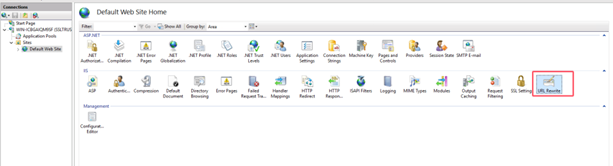
-
Go to the "URL Rewrite" page, and click Add Rules in the "Actions" pane on the right. As shown below:
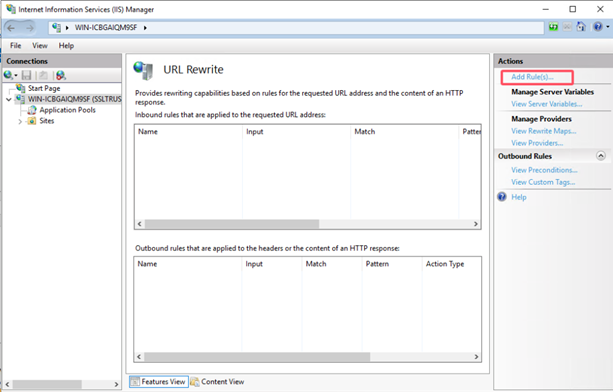
-
In the "Add Rule" window that appears, select Blank rule and click OK. As shown below:
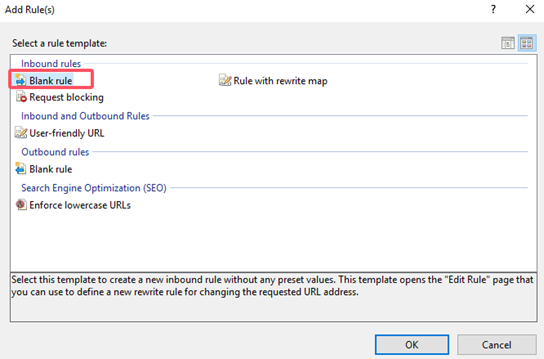
-
Enter the "Edit Inbound Rule" page. As shown below:
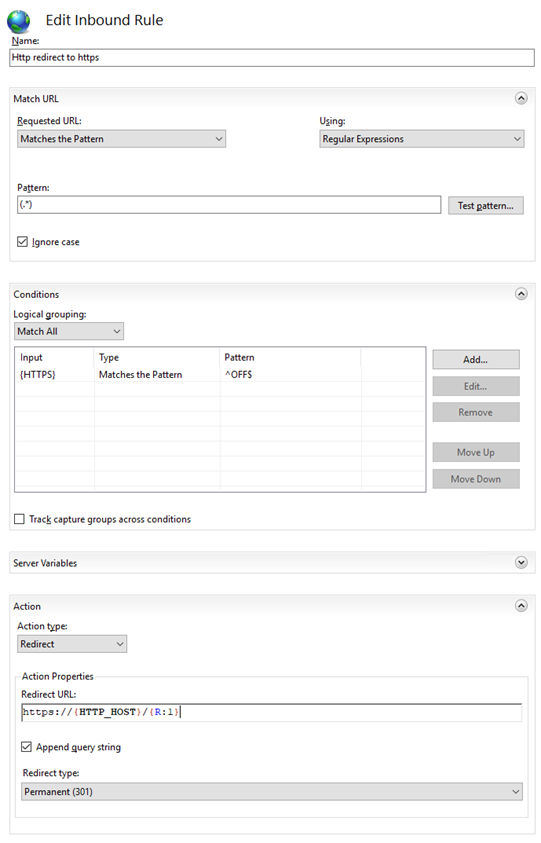
- Name: Enter Http redirect to https.
- Match URL: In "Pattern", manually enter
(.*). - Conditions:
- Click Add to open the "Add Condition" window.
- Condition input:
{HTTPS}. - Check if input string: The default selection is Matches the Pattern.
- Pattern: Manually enter
^OFF$.
- Action: Fill in the following parameters.
- Action type: Select Redirect.
- Redirect URL:
https://{HTTP_HOST}/{R:1}. - Redirect type: 301 Redirect.
-
Click Apply in the "Actions" pane on the right to save.
-
Return to the site home page, and click Restart in the "Manage Website" pane on the right. You can then access the site using HTTPS.
For the complete SSL certificate installation process, see IIS Server Installation Guide for sslTrus SSL Certificate
Apache
If you need to automatically redirect HTTP requests to HTTPS, you can set it up by following the steps below:
-
Edit the
/etc/httpd/confconfiguration file in thehttpd.confdirectory. Check whether the configuration file containsLoadModule rewrite_module modules/mod_rewrite.so. If it exists, remove the comment symbol (#) at the beginning of the line. If it does not exist, add the lineLoadModule rewrite_module modules/mod_rewrite.so, then save the configuration file. -
Open the http.conf file and add the following content to the configuration file:
<VirtualHost *:80>
# Newly added
RewriteEngine on
RewriteCond %{SERVER_PORT} !^443$
RewriteRule ^(.*)?$ https://%{SERVER_NAME}%{REQUEST_URI} [L,R]
</VirtualHost> -
Restart the Apache server, and you can then access it via the domain name, implementing automatic HTTP-to-HTTPS redirection.
For the complete SSL certificate installation process, please see Apache Server Installation Guide for sslTrus SSL Certificate
Apache2
If you need to automatically redirect HTTP requests to HTTPS, you can configure it as follows:
-
Enter
a2enmod rewritein the command line to enable the redirection module. -
Then open the HTTP configuration file, for example:
/etc/apache2/sites-available/000-default.conf, and add the following content to the configuration file:<VirtualHost *:80>
# Newly added
RewriteEngine on
RewriteCond %{SERVER_PORT} !^443$
RewriteRule ^(.*)?$ https://%{SERVER_NAME}%{REQUEST_URI} [L,R]
</VirtualHost> -
Restart the Apache server, and you can then access it via the domain name, implementing automatic HTTP-to-HTTPS redirection.
For the complete SSL certificate installation process, please see Apache2 Server Installation Guide for sslTrus SSL Certificate