How to Configure an Intranet IP SSL Certificate
Currently, SSL certificates that support HTTPS encryption for intranet IP addresses include domestic brands such as sslTrus and CFCA. Once you obtain an intranet IP SSL certificate, you can complete the configuration on your server (common types include Nginx, Apache, Tomcat, IIS, etc.). The process of implementing HTTPS authentication for intranet IP addresses is similar to the domain SSL certificate installation tutorial.
For reference:
-
Tomcat Server Installation Guide for sslTrus SSL Certificate
-
Apache Server Installation Guide for sslTrus SSL Certificate
However, after completing the server-side configuration of the intranet IP certificate, users still need to import the root certificate into the client to finally achieve https encryption and eliminate insecure warnings.
Client-Side Root Certificate Import Solutions for IP
There are two solutions for importing root certificates on the client side: one is the domain controller push method, and the other is the script execution method.
Solution 1: Push Root Certificate via Domain Controller
This solution is suitable for enterprises with a large number of user clients in an intranet environment. By pushing the root certificate through the domain controller, all users in the domain automatically receive the root certificate, eliminating the hassle of importing it separately on each client. The specific steps are as follows:
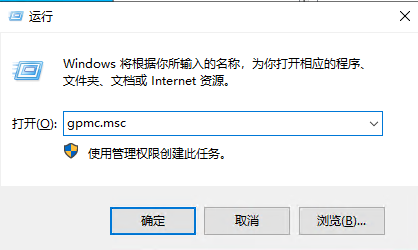
- On the domain controller, log in as an administrator and run
gpmc.mscGroup Policy Manager.
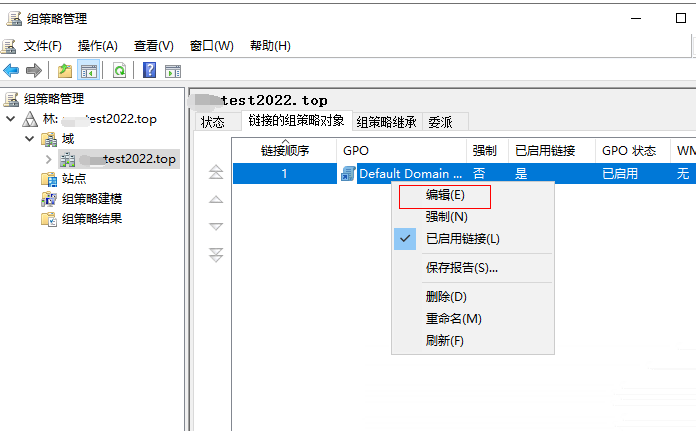
- Enter the forest, edit the default GPO, or add a new GPO.
- Expand [Computer Configuration] - [Policies] - [Windows Settings] - [Security Settings] - [Public Key Policies] - [Trusted Root Certification Authorities] in sequence.
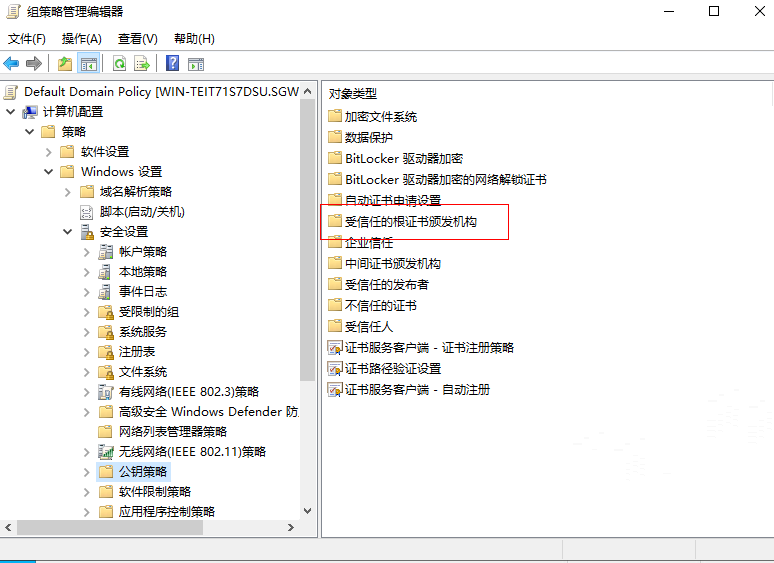
- Import the root certificate provided by Racent.

- After successful import, each client will automatically update Group Policy within 90 minutes, or you can force update the default domain policy using the
gpupdate /forcecommand.

- At this point, all users in the domain will receive the root certificate pushed by the domain controller.
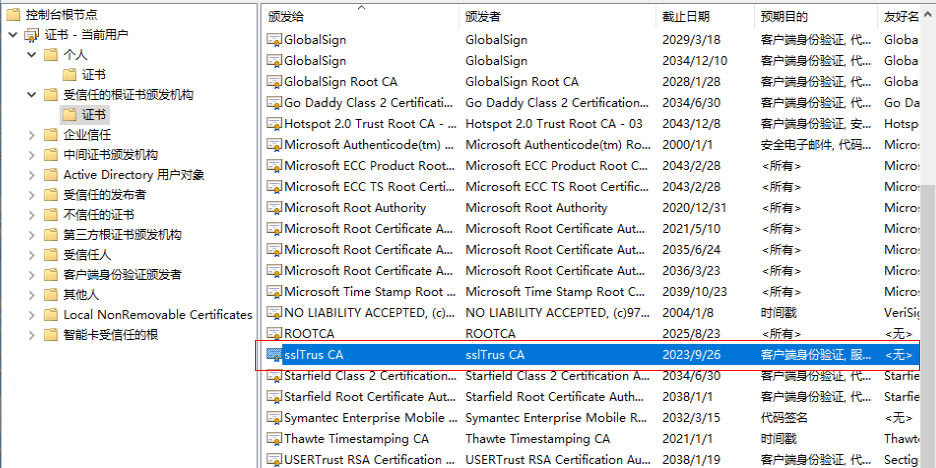
Option 2: Import the Root Certificate via Script
This option is suitable for users who do not have a domain controller or prefer not to use Group Policy. The specific steps are as follows:
- To import the root certificate via script, open
Windows powershelland enter the following inpowershell:
Import-Certificate -FilePath "ssltrus-g1.der" -CertStoreLocation cert:\CurrentUser\Root
The content in quotes is the actual path where the root certificate is currently stored.
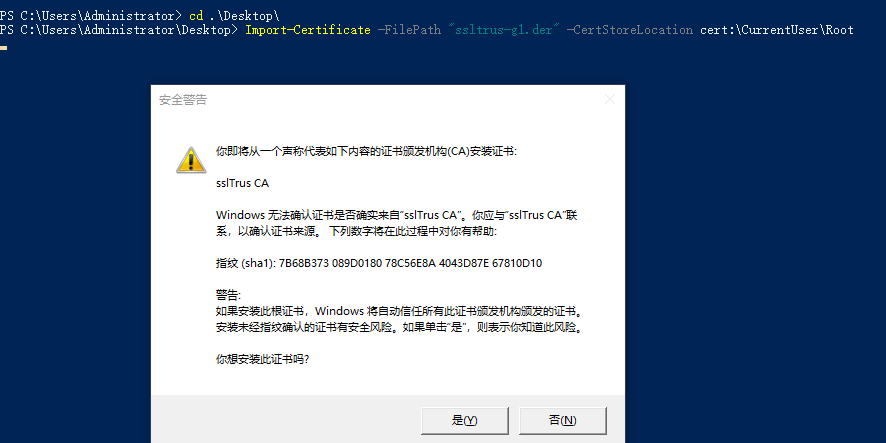
- Click "Yes" to import successfully, as shown below:

Users can choose the root certificate import solution according to their own situation to complete the configuration of intranet IP SSL certificates, achieving data transmission encryption and identity authentication in the intranet environment.