Installing an SSL Certificate on aaPanel
Installing an SSL certificate on aaPanel enables secure HTTPS access to your panel. This article explains how to install an SSL certificate in aaPanel.
Obtain the certificate
- After we issue your certificate, you will receive the certificate files in a compressed .zip package. The archive contains four folders corresponding to four certificate formats: Tomcat, Nginx, IIS, and Apache. aaPanel requires the certificate from the Nginx folder.
- The Nginx folder contains two files:
domain_com.crtcertificate filedomain_com.keyprivate key file
Install the SSL certificate
- Log in to the aaPanel web panel and click Website to access the website management page.
- On the website management page, select the site for which you want to configure the SSL certificate and click Settings, as shown in the image below:

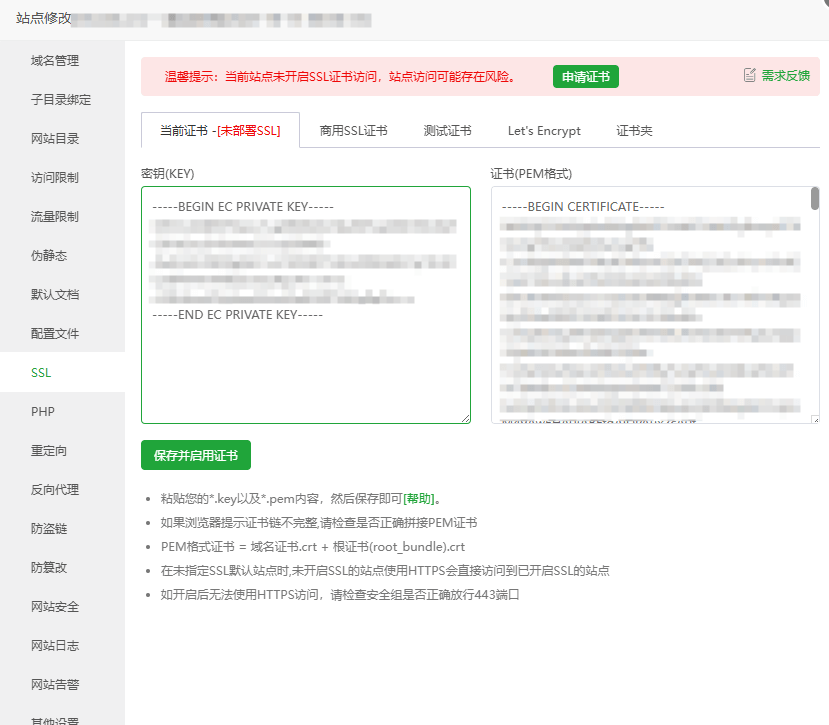
- In the pop-up site modification window, click SSL > Current certificate, and fill in the key and certificate files as shown in the image below:
Please open the
crtfile andkeyfile with Notepad or another text editor, copy their contents, and paste them into aaPanel.

- Click Save and enable to complete the deployment.
Test the SSL certificate
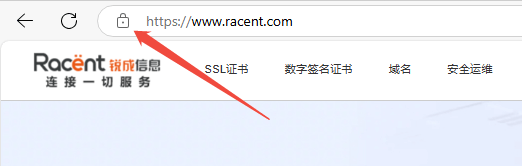
Enter the domain name bound to the SSL certificate in your browser's address bar to test whether the SSL certificate was installed successfully. If installation succeeded, a secure padlock icon will appear in the browser address bar; you can click it to view certificate information.