Install an SSL Certificate on an IIS Server

You can enable HTTPS secure access on your IIS server by installing an SSL certificate on it. This article describes how to install an SSL certificate on an IIS server.


Obtain the certificate

  1. After we issue the certificate for you, we will provide the certificate file in .zip compressed format. The compressed package contains four folders corresponding to four certificate formats: Tomcat, Nginx, IIS, and Apache. For an IIS server, you need to use the certificate in the IIS folder.

  2. The IIS folder contains three files:

  • domain_com.pfx certificate file
  • domain_com.key private key file
  • password.txt certificate password file

Import the SSL certificate

  1. Copy the obtained domain_com.pfx certificate file from your local directory to the desktop of the IIS server.

  2. Enter mmc in the Run dialog box to open the console.

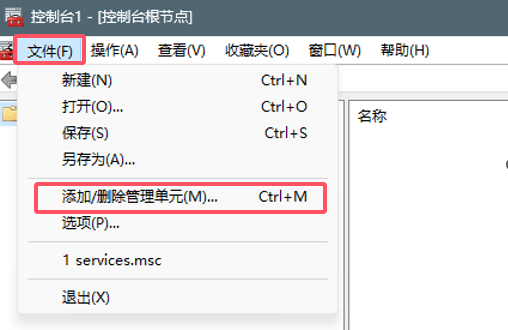
  3. Select File - Add/Remove Snap-in, as shown in the following figure:

    IIS

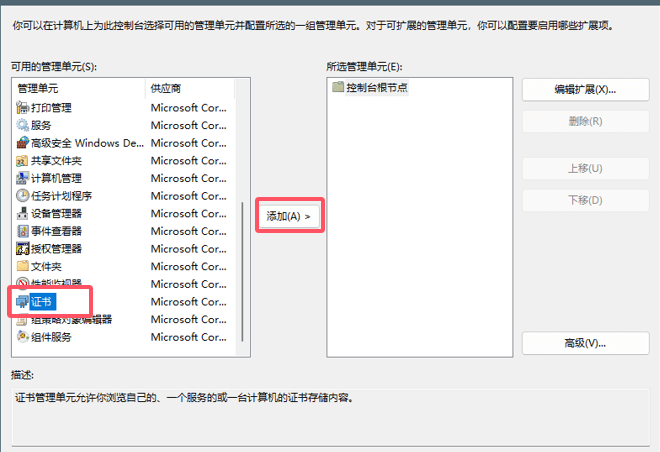
  4. Select Certificates and click Add, as shown in the following figure:

    IIS

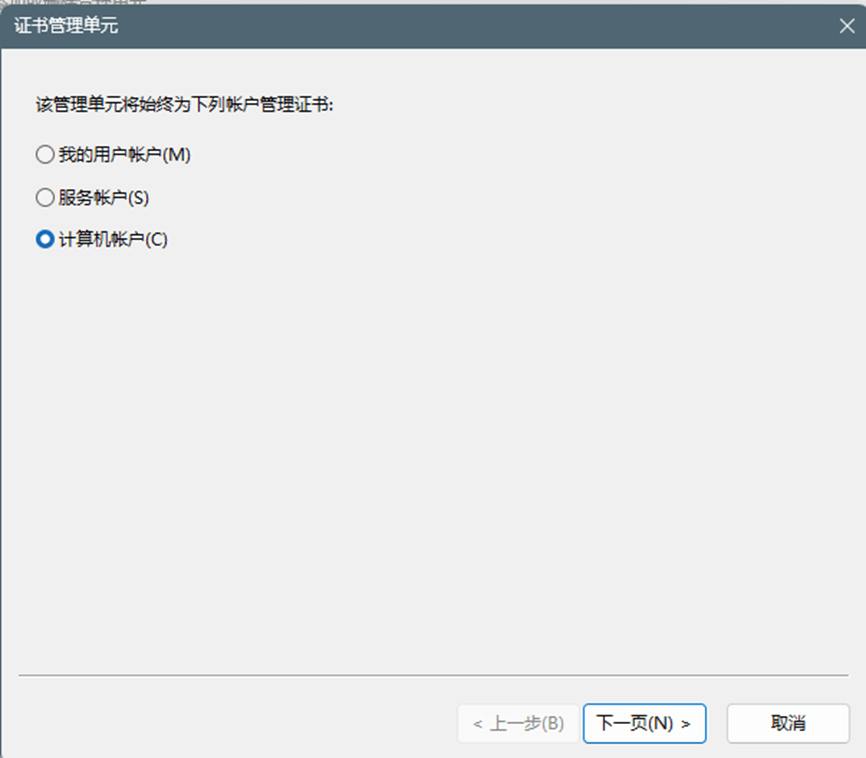
  5. Select Computer account, then click Next, as shown in the following figure:

    IIS

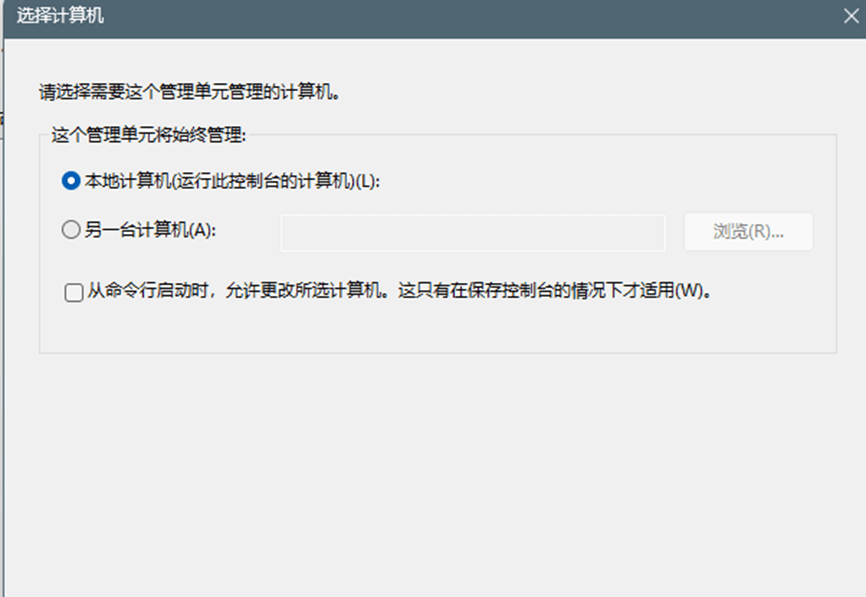
  6. Select Local computer, then proceed to the next step, as shown in the following figure:

    IIS

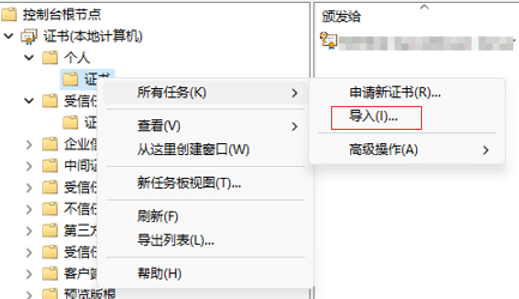
  7. Right-click under Personal - Certificates, then select All Tasks - Import.

    IIS

  8. Select Browse in the Certificate Import Wizard.

    IIS

  9. Locate the certificate file pfx you just uploaded to the desktop, click OK, then enter the password from the password.txt file.

  10. After successful import, there will be three certificates, including the server certificate, intermediate certificate, and root certificate. Importing via the console can avoid errors caused by an incomplete certificate chain during access.


Install the SSL Certificate

  1. After the SSL certificate is successfully imported to the server, you need to assign and bind the SSL certificate to your website.

  2. In the Connections menu of the main window of Internet Information Services (IIS) Manager, select the name of the server where you want to install the certificate.

  3. Under Sites, select the site that will use the SSL certificate.

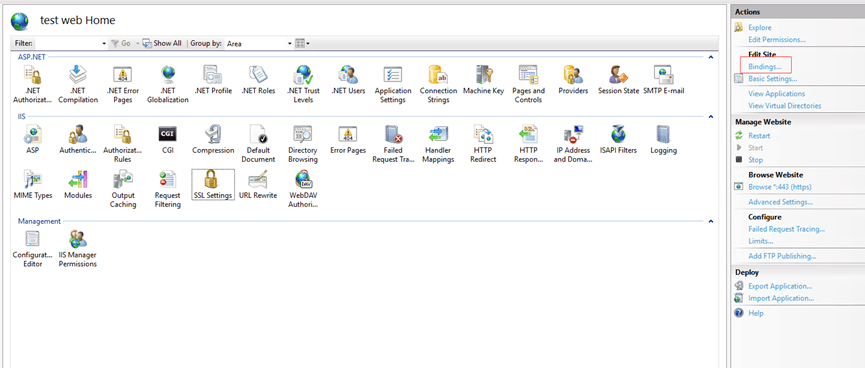
  4. In the Actions menu on the right, click Bindings, as shown in the image below:

    IIS

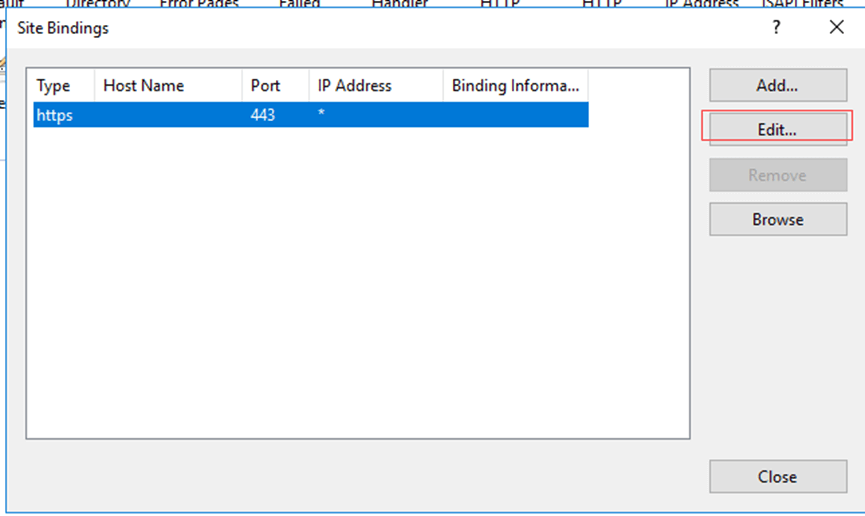
  5. In the newly opened Site Bindings window, if there is no HTTPS binding, click Add. If an HTTPS binding already exists, select it and click Edit, as shown in the image below:

    IIS

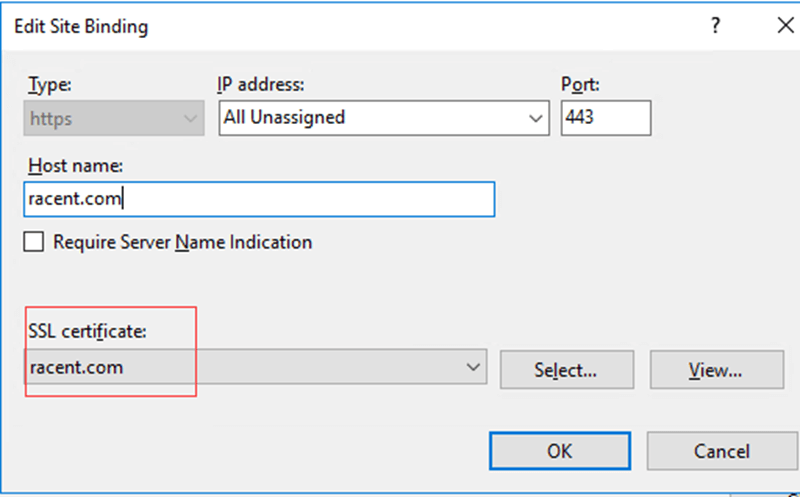
  6. For Type, select "HTTPS". Set the IP address to "All Unassigned" and the port to "443", then select the certificate imported in the previous step for the SSL certificate field.

    IIS

  7. Click OK. The SSL certificate has now been installed successfully and configured for the corresponding website.


Test the SSL Certificate

Enter the domain name bound to the SSL certificate in the browser address bar to test whether your SSL certificate is installed successfully. If successful, a security padlock icon will appear in the browser address bar, which you can click to view certificate details.

SSL certificate effect


Security configuration for automatic HTTP to HTTPS redirection (optional)

  1. Open IIS Manager.

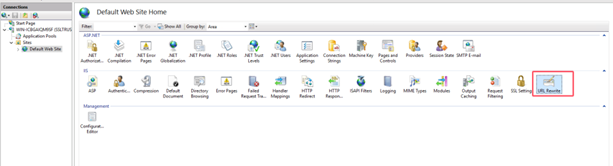
  2. Select your site name under Websites, then double-click to open URL Rewrite, as shown in the following figure:

    Note

    Before performing this step, please download and install the URL Rewrite module.

    IIS

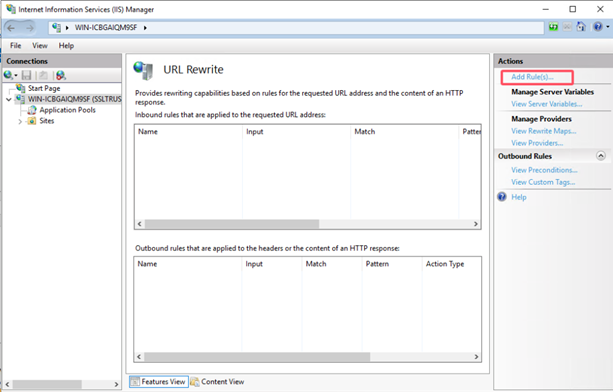
  3. On the URL Rewrite page, click Add Rule in the Actions pane on the right, as shown in the following figure:

    IIS

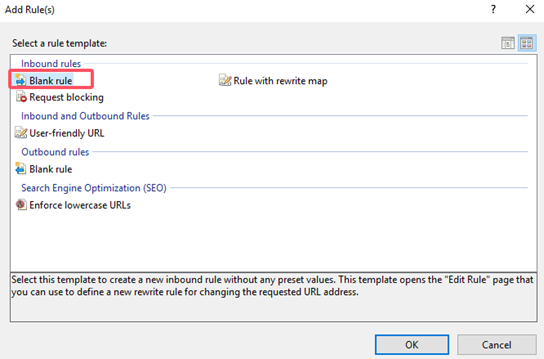
  4. In the pop-up Add Rule window, select Blank rule and click OK, as shown in the following figure:

    IIS

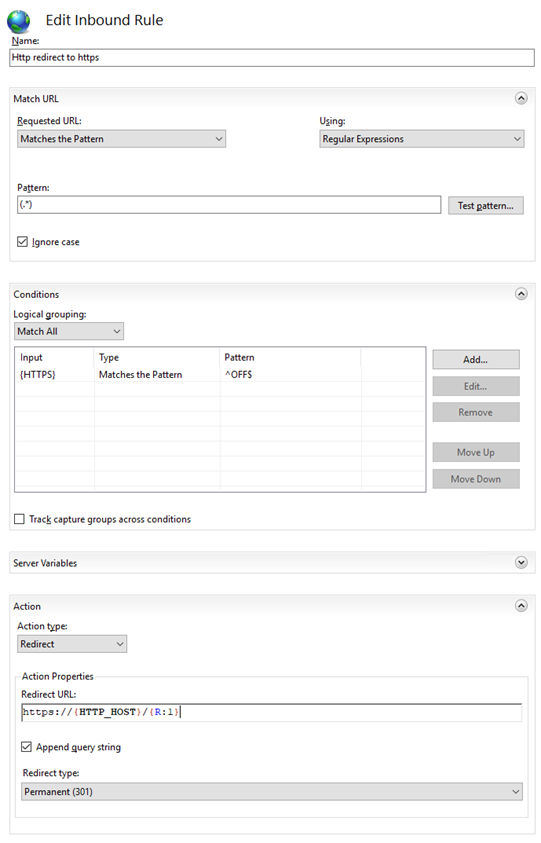
  5. Go to the Edit Inbound Rule page, as shown in the following figure:

    IIS

    • Name: Enter Http redirect to https.
    • Match URL: In the Pattern field, manually enter (.*).
    • Conditions:
      • Click Add to open the Add Condition window.
      • Condition input: {HTTPS}.
      • Check if input string: Keep the default selection Matches the Pattern.
      • Mode: Manually enter ^OFF$.
    • Action: Fill in the following parameters.
      • Action type: Select Redirect.
      • Redirect URL: https://{HTTP_HOST}/{R:1}.
      • Redirect type: 301 redirect.
  6. Click Apply in the "Actions" column on the right to save.

  7. Return to the website homepage and click Restart in the "Manage Website" section on the right. You will then be able to access the site via HTTPS.