Tomcat服务器安装SSL证书(JKS格式)
您可以通过将SSL证书安装到Tomcat服务器,使Tomcat服务器支持HTTPS安全访问。本文介绍如何在Tomcat服务器中安装SSL证书。
说明
本文档Tomcat版本以tomcat9.0.13为例。 安装前请确认443端口未被占用,如果443端口已使用,请在安装证书时绑定其他端口。
获取证书
-
我们为您签发证书后将会给您颁发证书文件(.zip)压缩格式,压缩包中有四个文件夹分别对应四种证书格式:Tomcat、Nginx、IIS、Apache;本文档使用JKS格式进行安装使用Tomcat文件夹内的证书。
-
Tomcat文件夹中将包含三个文件,
domain_com.jks证书文件domain_com.key私钥文件password.txt证书密码文件
安装SSL证书
- 将已获取到的
domain_com.jks证书文件从本地目录拷贝到Tomcat服务器的/usr/tomcat9.0.13/conf目录下。
- 不同版本的Tomcat路径名称会有些许区别,请前往您的服务对应的路径进行操作。
- 部分用户JDK版本如果和我们转换JKS文件的环境的JDK版本不同时,可能需要手动在当前使用环境转换JKS文件。
请参考下方命令进行JKS文件转换,注意替换对应参数:
keytool -importkeystore -srckeystore domain.pfx -srcstoretype pkcs12 -srcstorepass pfxpassword -destkeystore domain.jks -deststoretype jks -deststorepass pfxpassword
请替换 domain.pfx (IIS文件夹中pfx文件) pfxpassword (pfx文件的密码) domain.jks(转换后jks文件的名字) pfxpassword(PFX文件的密码)
- 编辑在
/usr/tomcat9.0.13/conf目录下的server.xml文件。 在server.xml文件中添加Connector 属性,内容如下:
<Connector port="443" protocol="HTTP/1.1" SSLEnabled="true"
  maxThreads="150" scheme="https" secure="true"
  keystoreFile="/usr/tomcat9.0.13/conf/domain_com.pfx" <! -- 证书的路径 -->
  keystorePass="证书密码"  <! -- 请替换为password.txt密码文件中的内容 -->
  clientAuth="false"/>
- 保存配置文件,在bin目录下执行以下命令,确认配置是否正确。
./configtest.sh
- 重启Tomcat,在bin目录下执行以下命令:
./shutdown.sh  #关闭 Tomcat 服务器
./startup.sh   #启动 Tomcat 服务器
测试SSL证书
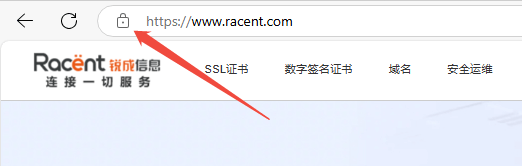
在浏览器地址栏输入绑定SSL证书的域名,测试您的 SSL 证书是否安装成功。如果成功,则浏览器地址栏会显示一个安全锁标志,点击可查看证书信息。
HTTP 自动跳转 HTTPS 的安全配置(可选)
如果您需要将 HTTP 请求自动重定向到 HTTPS,您可以通过以下操作设置:
- 编辑
/usr/tomcat9.0.13/conf目录下的web.xml文件,找到</welcome-file-list>标签。 - 请在结束标签
</welcome-file-list>后面换行,并添加以下内容。
<login-config>
 <!-- Authorization setting for SSL -->
 <auth-method>CLIENT-CERT</auth-method>
 <realm-name>Client Cert Users-only Area</realm-name>
</login-config>
<security-constraint>
 <!-- Authorization setting for SSL -->
 <web-resource-collection >
     <web-resource-name >SSL</web-resource-name>
     <url-pattern>/*</url-pattern>
 </web-resource-collection>
 <user-data-constraint>
     <transport-guarantee>CONFIDENTIAL</transport-guarantee>
 </user-data-constraint>
</security-constraint>
- 编辑
/usr/tomcat9.0.13/conf目录下的server.xml文件,将redirectPort参数修改为 SSL 的connector的端口,即443端口。如下所示:
<Connector port="80" protocol="HTTP/1.1"
  connectionTimeout="20000"
  redirectPort="443" />
- 保存配置文件,在
bin目录下执行以下命令,确认配置是否正确。
./configtest.sh
- 如果配置没有问题,重启Tomcat服务器即可使用域名访问,实现HTTP自动跳转HTTPS。
./shutdown.sh  #关闭 Tomcat 服务器
./startup.sh   #启动 Tomcat 服务器